Affiliate links on Android Authority may earn us a commission. Learn more.
Googlebooks are a new category of Android-powered laptops, and I’ve been using them for two weeks. While I primarily tested the Acer Googlebook 14, I also took the Dell XPS Googlebook for a spin. During the first week, I used Googlebooks as my only computers. I took them on the go, hooked them up to external monitor setup, and used them for absolutely everything.
The experience was rough, to put it bluntly. Tasks that would’ve taken me half the time on a macOS or Windows laptop took twice as long on a Googlebook, and required lengthy troubleshooting sessions. Basic features were unreliable, or didn’t work at all. Then came week two.
With a slew of early Googlebook OS fixes in tow, some of my initial frustrations were already resolved. I tried to mix Googlebooks in with my other computing devices, and searched for new workarounds. The future for Googlebooks could be bright, but I have five major concerns that should rule them out for almost everyone today.
I want to start with the “Better Together” features, because they’re easily the best part of using a Googlebook. This is what Google is calling the set of cross-device features bridging the connection between your Android phone and Googlebook. Better Together features stumbled out of the gate, with prolific setup issues and lacking support for Samsung phones. Luckily, I can report that I’ve been using a Pixel 11 Pro Fold and Samsung Galaxy Z Fold 8 reliably with my Googlebook for a week.
As someone who spends too much time using Google Photos for cross-platform file sharing, I’ve loved using Quick Access. Essentially, my phone’s on-device storage appears automatically in the Files app on my Googlebook. I can access photos, files, and music from my Android phone straight from my laptop, and it’s quite convenient. It would be nice if it worked both ways, and I could access my Googlebook’s files from my Android phone.
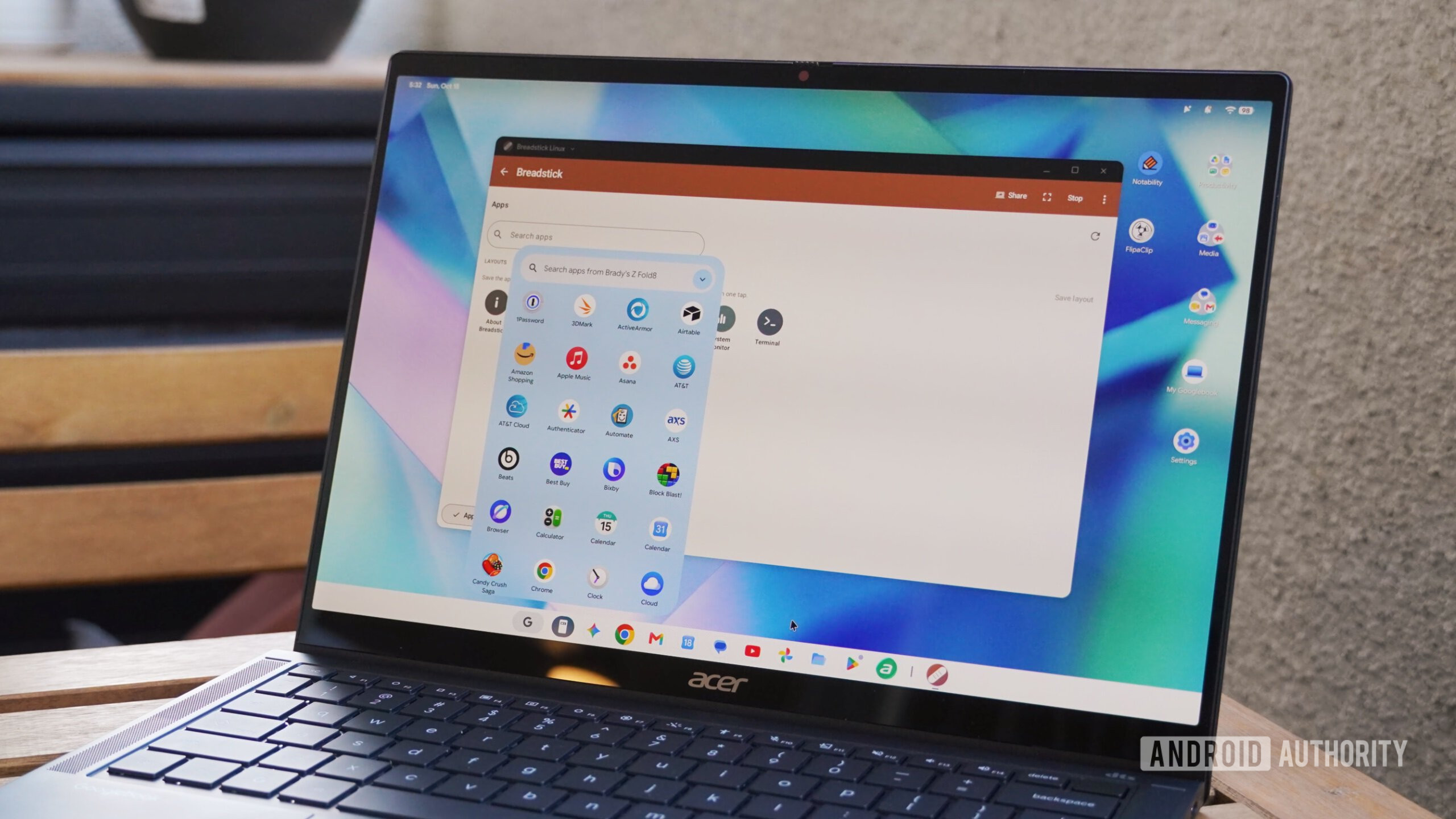
I was surprised to learn that Better Together features work with multiple Android phones. In the Files app, I can see the Pixel 11 Pro Fold and the Galaxy Z Fold 8 as data sources in the sidebar. The same goes for Cast My Apps, the feature that streams apps from your Android phone to your Googlebook without installing them. There’s a drop-down menu that lets me pick between the two connected Android phones — and a button to add more.
Generally, brands don’t build features for the infinitesimal percentage of tech reviewers, enthusiasts, and power users that regularly keep multiple phones in their daily rotation. I’m thrilled that I can add every Android 17 device I own to my cross-device services group for use with a Googlebook. If you have separate Android phones for work and personal use, this impressive level of multi-device integration might genuinely move the needle in your purchasing decision.
Continue On is great, too — I’ll start work in Chrome on my Galaxy Z Fold 8’s folding display and finish it on my Googlebook. When I open the Android laptop, whatever I was working on appears in the taskbar.
Here’s the catch: the more you use a Googlebook, the more limitations you’ll find. Some Android apps can’t be downloaded through the Google Play Store on Googlebook OS, so naturally, I turned to Cast My Apps. I tried to launch the Tesla app via Cast My Apps, but no matter how I resize it, the app won’t render properly. The same goes for Best Buy’s app, which also isn’t available for download in the Play Store.
If you plan to use Cast My Apps to stream apps from your Android phone that aren’t optimized for or available on Googlebook OS, you may end up disappointed. The apps that stream without issue are typically the apps that can be installed natively on GooglebookOS in the first place.
I use Google Authenticator for two-factor authentication daily, and it’s not available via the Play Store or Cast My Apps on a Googlebook. I have to pull out my phone, just like I would’ve if I had used a macOS or Windows laptop.
In my experience, the most crushing limitation of Better Together features is their reliance on a Wi-Fi network. They work great on your home’s wireless network, but not out in public. Many public or enterprise Wi-Fi networks block peer-to-peer Wi-Fi sharing outright. Both devices need to be on the same Wi-Fi network, and that’s a problem while you’re out and about. Think about it — we don’t typically connect our phones to public Wi-Fi, we stick to mobile data.
If I have to take out my Android phone and connect to a public Wi-Fi network to use Better Together features on my Googlebook, it’s hardly a seamless experience. Apple solved this years ago with the Apple Wireless Direct Link (AWDL), which creates a direct peer-to-peer sharing link between devices independent of an active wireless network. It’s how AirDrop and iPhone Mirroring work without a Wi-Fi connection.
I want to love Better Together features, but they’ll be playing second fiddle to Apple integration until Google fixes this problem.
Considering the unfinished state of Googlebook OS, setting reasonable expectations should’ve been part of Google’s playbook for the Googlebook rollout. Instead, Google’s press release touted Googlebook as running “the desktop-class Chrome browser with extensions.” This technically isn’t an outright lie, because Google did hedge the statement by describing Chrome as being desktop-class and not the desktop version. As a user, it still feels like one.
Googlebooks do not run the desktop version of Chrome; they run an adaptation of the Android app that has extensions and loads sites in desktop mode. Early on, features like tab groups, multi-device sync, and picking up where you left off didn’t work at all. Progressive web apps (PWAs) didn’t work all the time. These shortcomings have been fixed in an update, but they still leave a bad taste in your mouth as an early adopter.
Open the three-button menu in Chrome, peek through the list of Chrome flags, or enter Chrome settings, and it’s immediately clear to any power user that the Googlebook OS version is not equivalent to the macOS, Linux, or Windows apps. It doesn’t even support multiple Chrome profiles. Remember, this isn’t a $300 Chromebook we’re talking about — the cheapest Googlebook is $899, and the most-expensive model starts at $1,299.
iPads have auto-loaded the desktop versions of sites in Safari for years, and mobile browsers with extension support have existed for years. Nothing about the Googlebook OS version of Chrome is impressive. To the contrary, it’s underwhelming compared to all the other laptops you can get with desktop browsers in the same price range.
I thought Googlebook hardware would be a slam dunk, but it let me down in more ways than one. After testing two models, the $899 Acer Googlebook 14 and the $999 Dell XPS Googlebook, it’s clear that the build quality isn’t on par with similarly priced MacBooks. The XPS Googlebook creaks and has an enormous amount of deck flex, whereas the Acer Googlebook 14 is chunky with thick bezels.
The hardware isn’t as consistent across models as I expected. Both models I tried had mechanical trackpads, which I try my best to avoid. There are some Googlebook models with haptic touchpads, but don’t expect the feature on all of them. Similarly, the fingerprint sensors on both laptops were unreliable. It usually took multiple tries to unlock them, and the laptops would often time out, requiring the passcode. The selfie cameras were bad by 2026 standards, too.
The cool factor of the glowbar is real, and I think it’s stylish. From a functional perspective, it’s borderline useless, as the glowbar always faces away from you. The charging indicator didn’t feel more useful than a status light.
Additionally, the chips aren’t as impressive as they look on paper. I expected great things from the Qualcomm Snapdragon X Elite-equipped XPS Googlebook, considering my past experience with Windows on Arm laptops. Instead, the fans were loud, and the chip ran hot. The Intel-powered Acer Googlebook 14 unexpectedly proved to be the more stable model, but the Intel Core Ultra 5 is firmly a midrange laptop chip.
I’ve had to restart these Googlebooks more times in the last two weeks than I’ve restarted my Macs in the last year — no exaggeration. Clearly, things aren’t playing nice between Googlebook hardware and Android software.
You’d expect an Android laptop to be really good at running Android apps, but Googlebooks aren’t. Maybe I use an odd selection of Android apps, but I noticed a significant number of apps in my rotation simply couldn’t be installed from the Google Play Store.
Google has five compatibility ratings for Play Store apps: made for desktop, optimized for desktop, compatible with desktop, better on the website, and built for mobile. I’ve yet to find a single app that lives up to the “made for desktop” badge.
I tried Luminar, a photo editing app for Googlebook OS that is “made for desktop,” and it doesn’t support pinching or rotating gestures on the trackpad. Adobe’s Photoshop and Lightroom apps don’t even match the iPadOS version, and the new Premiere app can’t be installed on Googlebook. Sigh.
Google’s own apps often run as Trusted Web Activities (TWAs), rather than native Android apps. Google says it offers the version of its app that provides the best experience, but it should give users the option instead. I can safely say that the Android version of the YouTube app would run better on the Acer Googlebook 14 in tablet mode than the pre-installed TWA.