Changing your home's address on Apple Maps can be almost as stressful as moving home in real life, but there's one sure-fire way to get the job done without pulling your hair out.
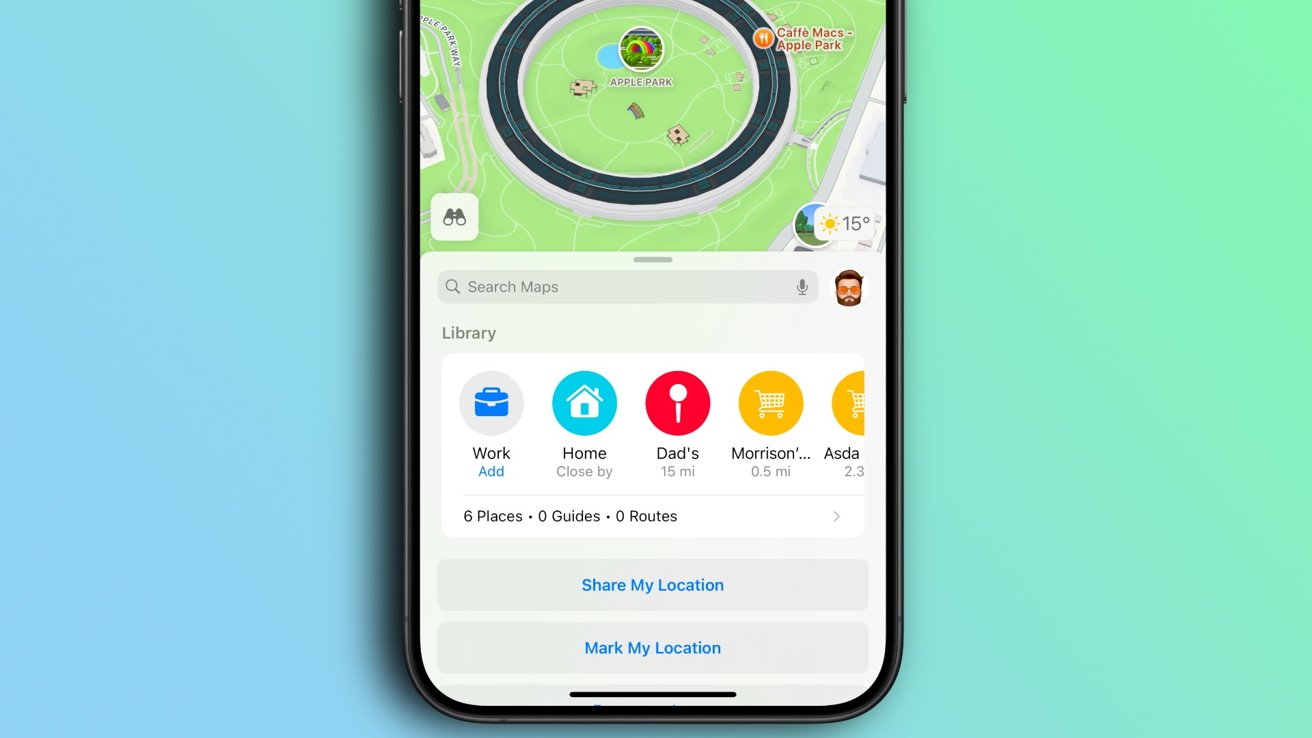
The Apple Maps app is a great way to get around, whether you're using it while driving via CarPlay or just walking. It also makes it easy to quickly get directions to the places that you visit often, like your home or where you work.
But if you've moved home and ever tried to change your address in your iPhone's Maps app, you'll know it can be tricky. The job can be complicated considerably if you also have your home address pinned, too.
Thankfully, changing your home's address is much easier when you keep in mind two main things. The first is that your home's address isn't normally set by the Maps app itself. And the second is that pinned addresses in the Maps app don't automatically update, nor can they be edited.
It's easy to see where the confusion comes from, but don't worry. We're going to clear everything up right here.
The first thing to remember is that your iPhone uses your contact card as the source of your home address whenever it is needed. It's this address that is used when you make purchases online, fill out online forms, and for anything else that requires an address.
Remember to update your pinned location in Apple Maps after changing your home address.
If you move home, it's this address that you need to change. And thankfully, it's easy to do.
That's all there is to it, your iPhone now has your new address. However, if you have your home set up as a pinned location in Maps, you'll also need to go a step further.
Unfortunately, Maps won't automatically update the pin to reflect your new address. Pinned addresses also can't be edited, so you'll have to delete the pin and add a new pin all over again.