
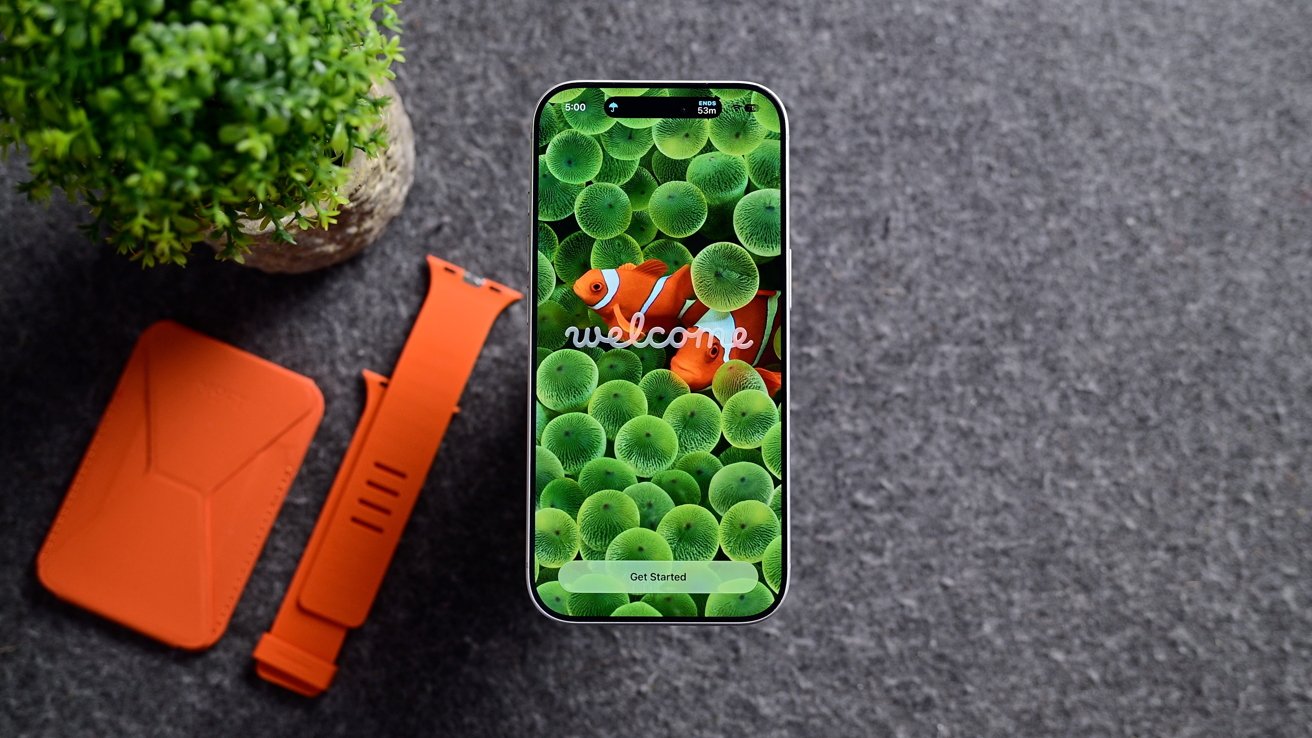
Now that the public beta of iOS 27 is out, here are some of the best things you can do on your iPhone after updating.
This update is big, and there's a lot to be excited for. To list just a few of the features, there are new deep parental controls, an easier-to-use Shortcuts app, Apple Intelligence features for Apple Home, enhanced Flyover in Maps, and much more.
I've been using iOS 27 for more than a month, and while the update is full of new features and changes, there are a handful of things I think everyone should do.
If there is one thing I know about Apple's recent iOS redesigns, it is that users are very opinionated on Liquid Glass. Apple looks to appease the masses with iOS 27 by giving users an adjustable slider.
Use the slider to adjust the transparency of Liquid Glass with iOS 27
By going to Settings > Appearance > Liquid Glass, you can dial in exactly how much transparency you want. You can, like me, opt for a clearer look, or you can choose to make the UI more tinted.
This won't satisfy everyone, as the fluid animations remain, but it should satisfy those who dislike transparency. The tinted appearance removes transparency almost entirely.
People have complained about the transparency issue since its introduction. Given that, tinting the UI is a strong contender for the first thing to do after an update.
Another early feature to check out will be Siri AI and Apple Intelligence. Not only because this is a huge new feature, but also because you may end up on a waitlist for a while.
The new Siri AI on top of the Home Screen with iOS 27
When Apple first released the initial iOS 27 beta, developers had to wait sometimes several days before gaining access to Siri AI. After updating, you may also end up on a waitlist, so it's best to opt in early.
After being accepted, you'll gain access to some of the new features. However, you'll need to wait for a fresh reindexing of your device to fully utilize these features.
This reindexing process scans your apps, messages, emails, and other data to enable Siri AI to access and interact with them.
For me, this took weeks to finish. Be patient, and if you want to try to speed it up, keep your phone on a charger more than usual.
Apple Intelligence and Siri are significantly more capable with Apple's 27 updates. Siri AI has a new look; it has deep personal context, broad world knowledge, and a new dedicated app that will synchronize between all of your devices.
I know in my month so far with iOS 27 and Siri AI, I've been very impressed with its performance. That said, it's almost overwhelming to comprehend.
There is so much Siri AI can do now that I struggle to remember to tap into it. Each day I start to use it more and more, so it's worth investing the time to explore and see what it can help with.
One of my most recent uses was when my son's school sent out a PDF with all the days they were closed over the next several months. Instead of putting all of those manually into the calendar, I just asked Siri to add these dates to the family calendar.
It did just that. It understood that the dates were days school was closed, chose the correct calendar, and added them with appropriate titles. Afterward, it showed me confirmation of all the new listings.
Another useful feature I've been enjoying with iOS 27 is the new Apple Intelligence features for Photos. Apple has an updated Clean Up tool, a new Extend option, and a Spatial Reframe mode.
Extend allows you to add roughly 25% to any side of your existing image. You can add more background, change it from a landscape to a portrait, and more with this AI tool.
In iOS 27, you can extend your photos to better fit
Pro tip: the extend feature can be used on the Lock Screen, too. So if you have a photo or portrait that doesn't quite fit the aspect ratio of the Lock Screen, you can use this Extend tool to fill it perfectly.
Spatial Reframe will create a spatial version of an image to slightly adjust the angle of the photo. This can help with where a subject is looking, something in the background, or other angle issues that are slightly off.
File this as another oft-requested feature. With iOS 27, you can instantly create your own loyalty cards in Apple Wallet with no third-party app required.
The process is fast and can be done manually or aided by Apple Intelligence. You just scan the barcode or QR code on your loyalty card, and an Apple Wallet pass gets generated.
This is ideal for those regional grocery store chains, gift cards, or random memberships that live in dedicated apps or your wallet. All of that can be digitized and stored inside the native Apple Wallet app with your credit cards, tickets, and ID.
You can control the color, various fields, and more information on the card. As a backup, a photo of the original card is also stored with the Apple Wallet pass.