Affiliate links on Android Authority may earn us a commission. Learn more.
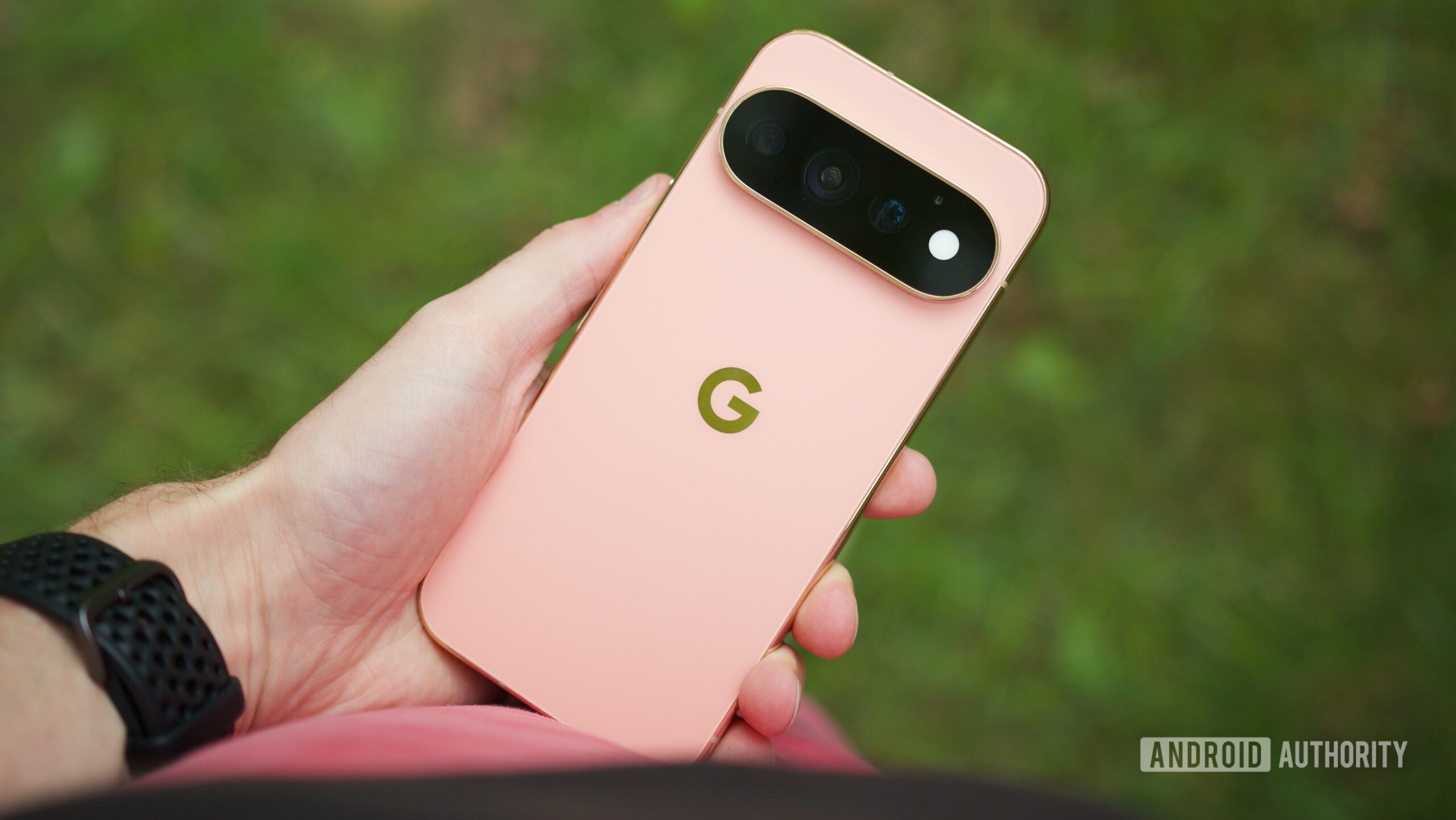
The Google Pixel 11 series is officially out in the wild. As with pretty much every Pixel Google has released before, the new phones aren’t necessarily set up to give you the best experience out of the box.
There are plenty of useful features and settings that are either disabled by default or require manual configuration. And with the Pixel 11 series bringing a heap of new software features, there are even more things worth tweaking this year.
So, if you’ve just picked up a new Pixel 11, here are 10 settings and features I’d recommend changing right away.
Pixel phones have long been known for their cameras, and with the Pixel 11 series, Google is giving you more control over how those photos actually look with a new feature called Camera Looks.
Instead of applying a filter after taking the photo, Camera Looks lets you choose the overall color and tone before you shoot. For the “Default Look,” you can choose between four different levels of HDR processing. Additionally, you can swipe through more stylized Looks that have a much bigger impact on colors, contrast, etc.
The feature defaults to the “standard” style we’ve always had, though, so you’ll need to change it yourself:
Google has also focused heavily on social media creators with the Pixel 11 camera. There’s now a built-in teleprompter that lets you read a script directly from the screen while recording, along with social media grid lines that show where things like usernames, captions, Like buttons, and other UI elements will appear once you upload the video. It’s something you don’t even get natively on the iPhone right now.
These tools aren’t enabled by default, though. To enable these features:
While Google hasn’t dramatically increased battery capacities this year, it has quietly added a useful charging feature called Extreme Charging. Similar to features we’ve seen from OnePlus, Oppo, and Vivo, Extreme Charging lets the Pixel temporarily prioritize faster charging when you’re in a hurry. There are a couple of catches, though.
Extreme Charging only works when your battery is below 50%, and unfortunately, you’ll need to manually enable it every time you want the faster charging speed.
To enable it, plug in your Pixel when the battery is below 50%, then head to Settings > Battery & charging > Extreme Charging and tap Turn on now.
While you’re already inside the Battery settings, I’d also recommend enabling the battery percentage.
For some reason, Pixel phones still don’t show the exact battery percentage in the status bar by default. Personally, I’d much rather know exactly how much battery I have left than try to judge it from a tiny icon.
To do this, head to Settings > Battery & charging and enable the Battery Percentage toggle.
One of the more interesting additions to the Pixel 11 Pro models is HiLight, Google’s new multicolor LED on the back. The light can activate when you’re using Gemini with the phone face down, but it can also display different colors depending on who’s calling. The catch is that you’ll need to assign those colors yourself.
It’s also worth noting that you can only use HiLight for contacts you have favorited. To do this, select a contact and tap the star icon at the top of the page. Once you do this, the HiLight option will appear.
Google has finally switched to a MediaTek modem with the Pixel 11 series, but there’s another setting worth enabling if you want the most reliable internet connection possible: Adaptive Connectivity.
When you’re connected to a weak Wi-Fi network, your Pixel can automatically switch over to cellular data to give you a faster connection rather than keeping you stuck on painfully slow Wi-Fi. It’s particularly useful when you’re moving around your house or somewhere with patchy Wi-Fi coverage.
Head to Settings > Network & internet > Adaptive Connectivity, then enable Auto switch to mobile network.
If you get bombarded with notifications throughout the day, chances are you’ve swiped all of them away at some point, only to realize that one of them was actually important.
Thankfully, Android has a feature called Notification History that keeps a record of the notifications you’ve recently received, including the ones you’ve dismissed. Unfortunately, it’s disabled by default. To enable the feature:
Like other Pixel phones, the Pixel 11 supports AI-powered notification summaries. These use the on-device Gemini model to condense longer notifications into something easier to read quickly, and you can enable them in the Notifications settings as well.
With Android 16 last year, Google finally brought lock screen widgets back to Pixel phones. The problem is that lock screen widgets are still disabled by default, even on the Pixel 11, so you’ll need to enable them manually.
Once enabled, whenever your phone is on the lock screen, you can swipe right to access your favorite widgets without unlocking the device. For example, I’ve added widgets for stocks, weather, and Google Tasks so I can quickly access all of them directly from my lock screen.
While you’re already inside the lock screen settings, I’d also recommend setting up the lock screen shortcuts. Head into Shortcuts, and from there you can customize what appears on both the left and right sides of your lock screen.
It’s 2026, and Now Playing remains one of my favorite underrated Pixel features.
The feature automatically identifies songs playing around you and displays the title directly on your lock screen. It also keeps a history of songs you’ve heard, which is incredibly useful when you hear something you like at a cafe or restaurant and forget to look it up immediately.