Apple’s Find My network has long been a compelling reason to pick up an iPhone. It uses hundreds of millions of devices to track your products using crowdsourced location data, and almost everyone chooses to participate. Google lacked a true alternative for a while, but we’ve had one for the past two years with Find Hub (formerly Find My Device). It’s still relatively new, so many Android users forget to use Find Hub or aren’t aware of everything it can do.
I don’t even remember to check Find Hub when I can’t find an Android phone, Wear OS watch, or Bluetooth earbuds — but I’m starting to change that. Google Find Hub is loaded with features that help you keep track of your gadgets and protect your data in a worst-case scenario. These are the five Find Hub features you need to know about.
Check your phone’s Wi-Fi network and battery percentage
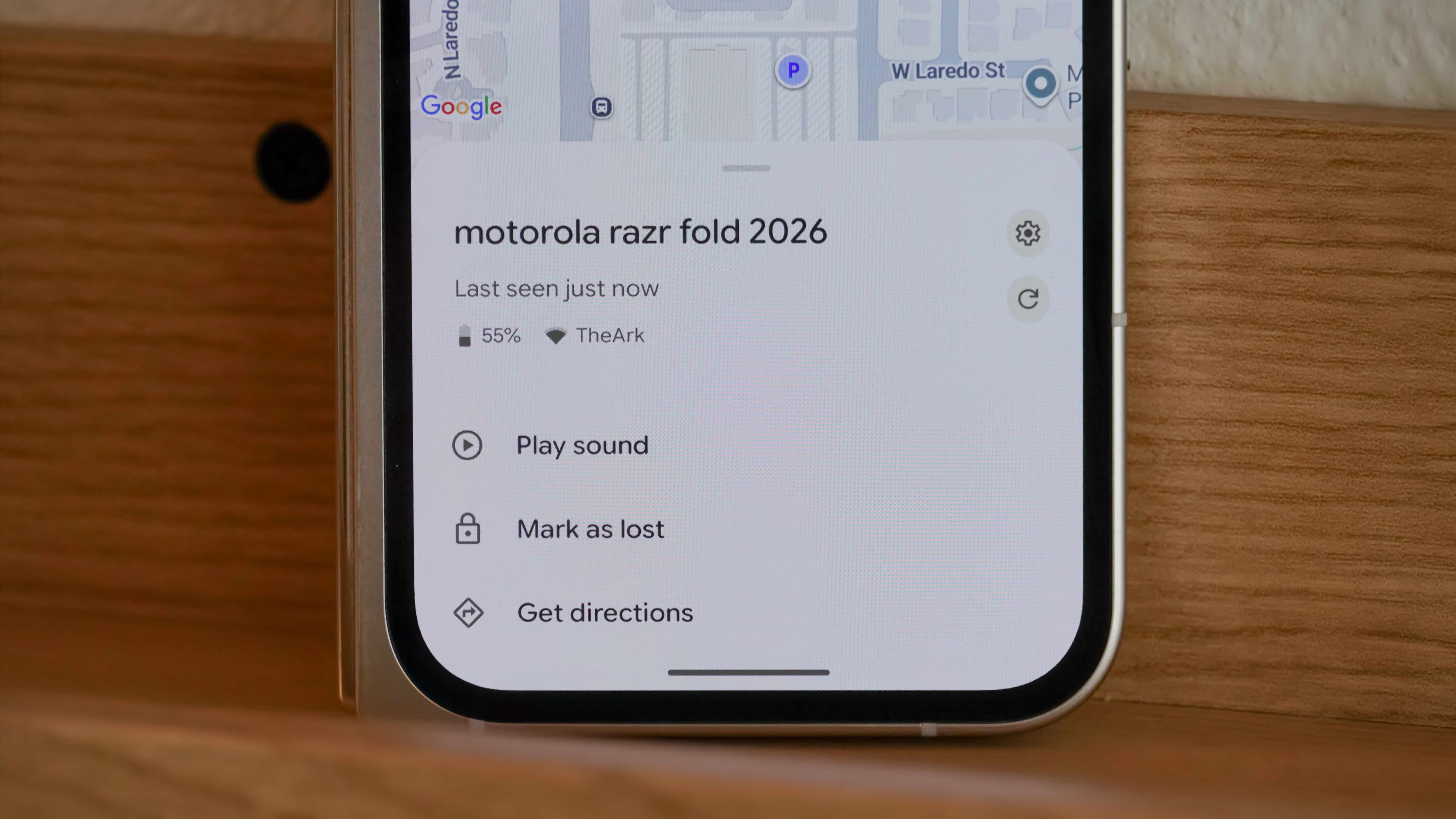
Most people probably know that Find Hub uses crowdsourcing to update a device’s real-time location so you can find it. You may not know that Find Hub can provide additional information about your phone, and this remote data can help you locate it. Crucially, Find Hub lists your device’s battery percentage in the app — this lets you know how much time you have to find it before the charge runs out.
More importantly, Find Hub will tell you whether your phone is connected to a Wi-Fi or cellular network. It’ll also let you know the strength of the connection signal. This only works when your device is online, but it can be very helpful. For example, if I see a phone in the Find Hub list connected to my home Wi-Fi network with a strong signal, I know it’s in my apartment. If it’s connected to my network with a weak signal, it could be in my car out front.
Sometimes, the information you get from a device’s battery and connectivity status can be more helpful than the raw GPS coordinates. To try it for yourself, open Find Hub and tap a device in the Devices list. If it is online, you’ll see when the device was last seen, its battery percentage, and network connection status under its name.
Find your device on a map, and get directions to it
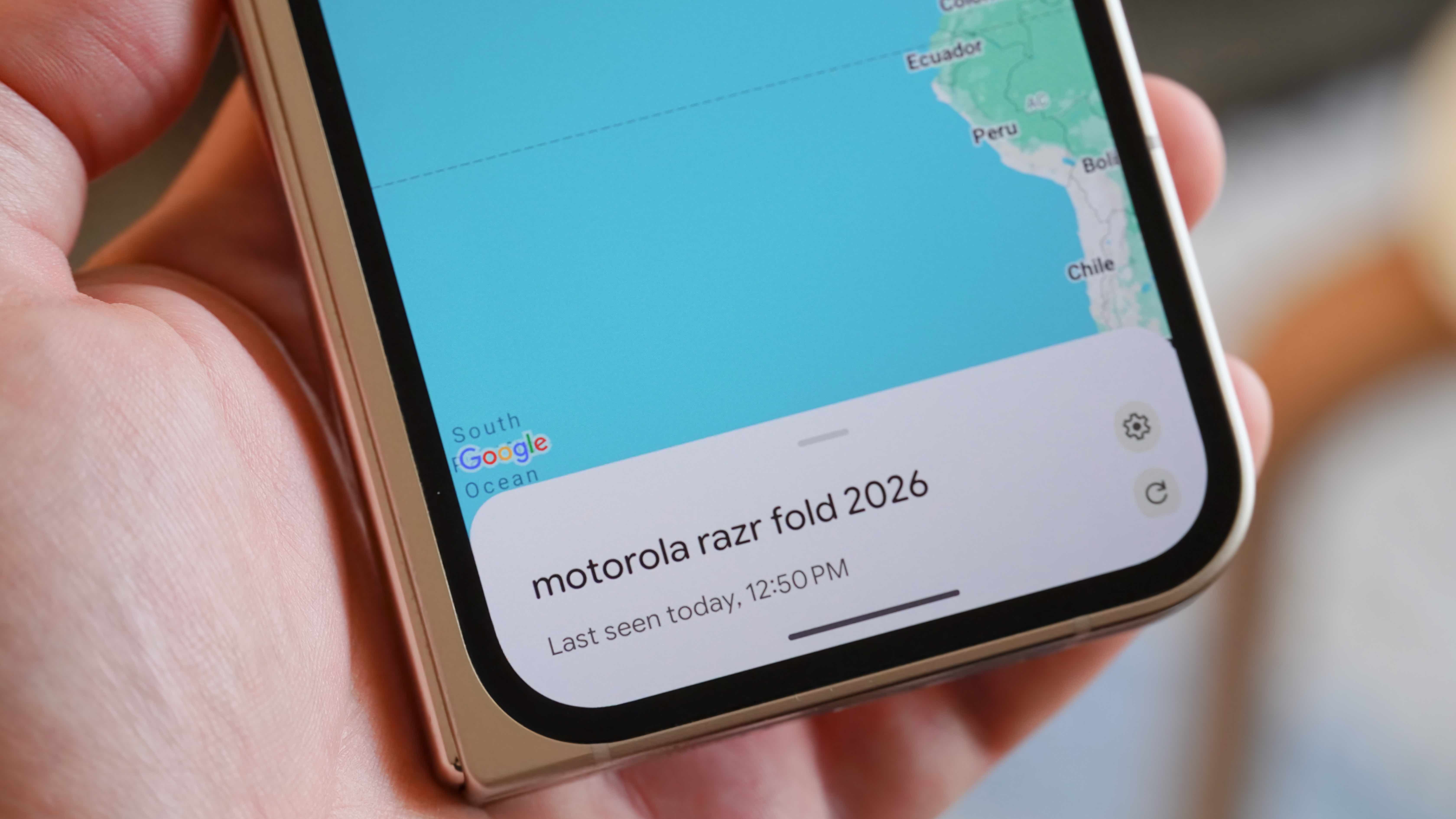
If you can’t remember where you left your device, its location data can help. I don’t always turn to Find Hub location data first because, unless you’re using a tracker with ultra-wideband (UWB) support, the app can’t help you narrow down the device’s location beyond providing GPS coordinates. Still, it can be useful if you can’t remember whether you left your phone at home, at work, or at a coffee shop.
To check it, open Find Hub and tap the name of your device in the list. A map will open with a pin showing the device’s last known location. You can tap the Get directions button to open Google Maps, view the coordinates on your device, and start navigating to them.
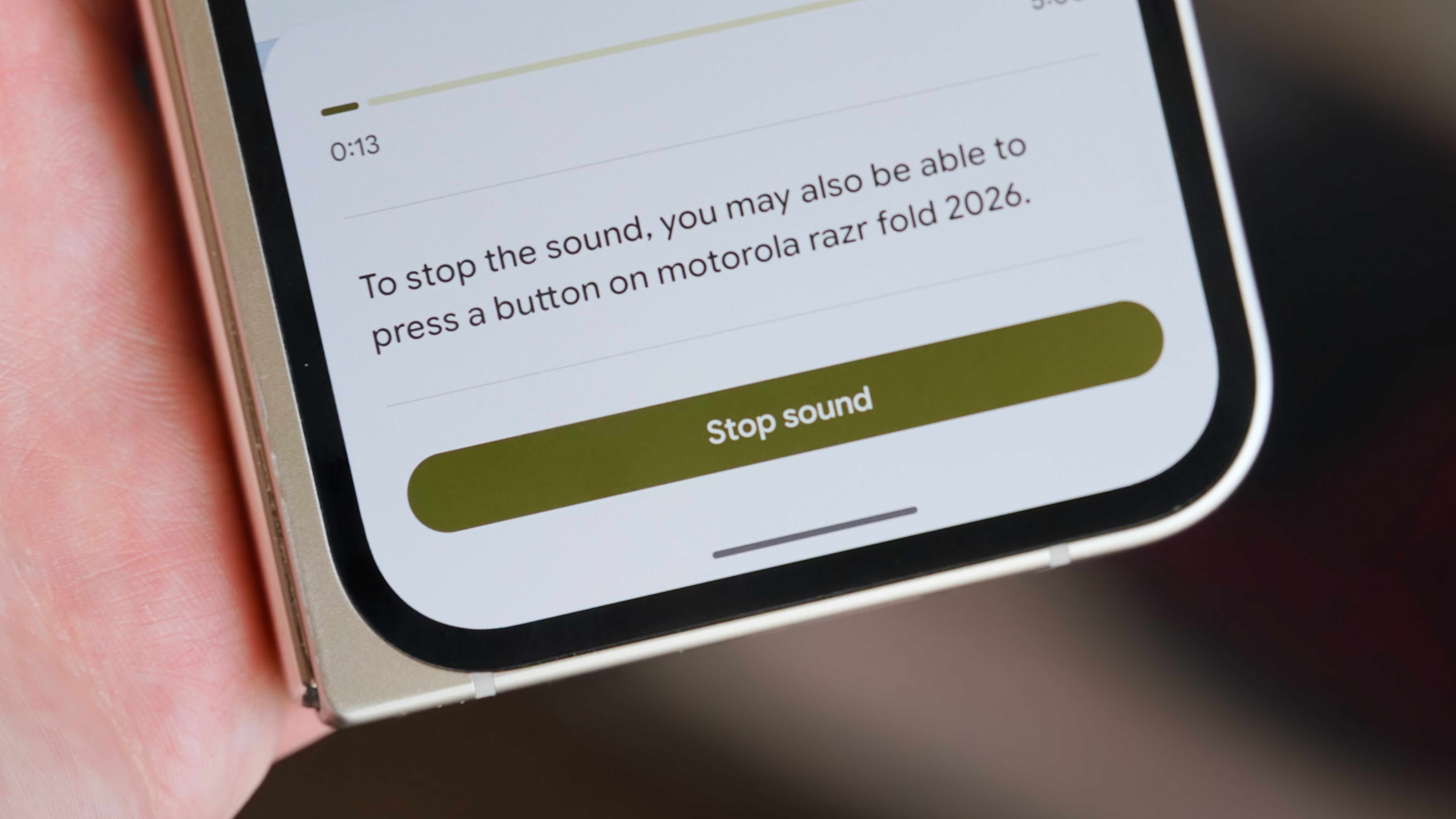
I use the Play sound feature in Find Hub more than the Get directions tool. If you think a device is lost near you, navigate to Find Hub > [Device Name] > Play sound to blare an alarm through your device if it is nearby and visible. It’s really loud, and sounding the alarm gives you a great chance of locating your lost product.
Share ownership of a device with someone else
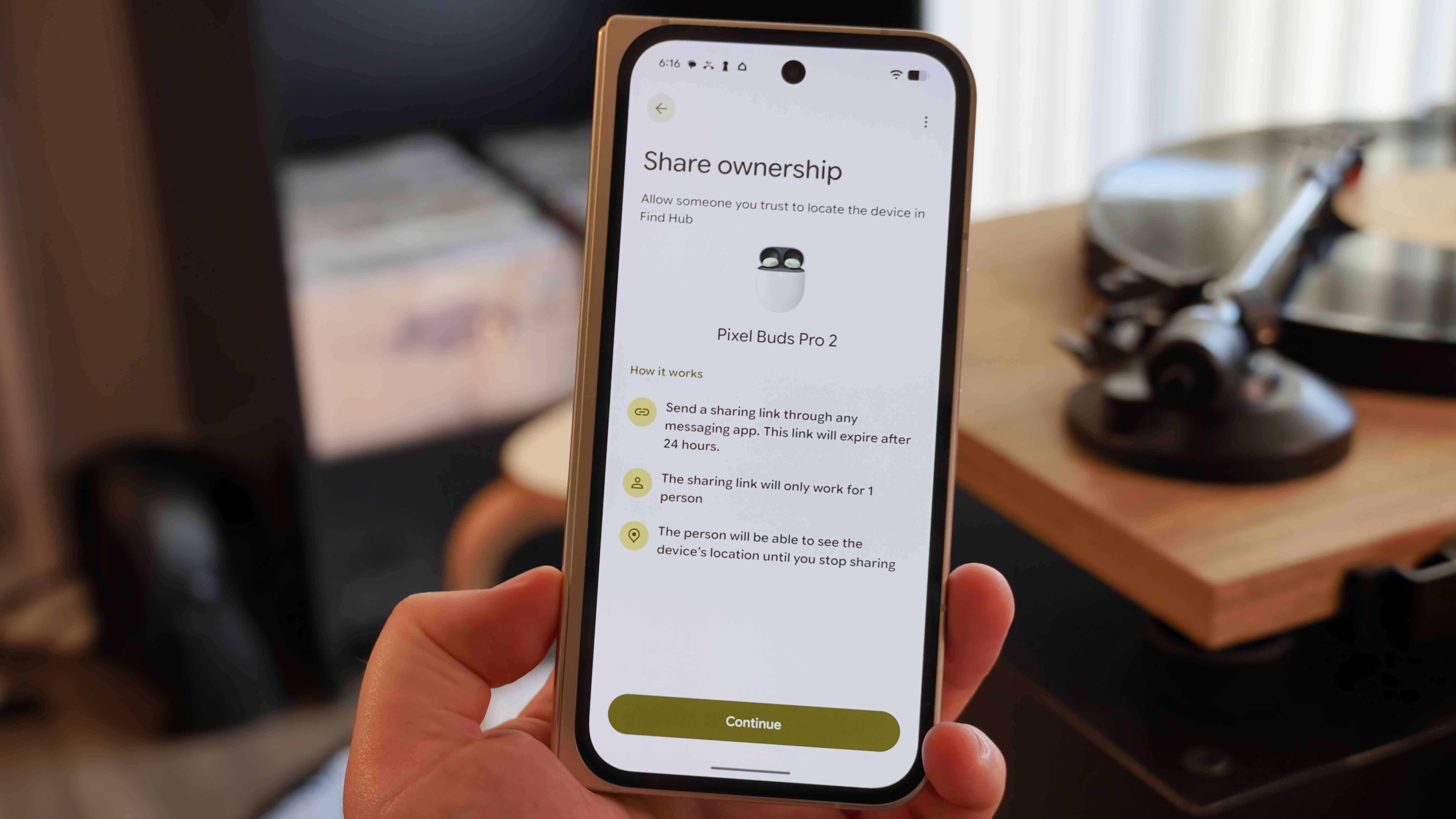
For accessories like earbuds, you can share ownership with a trusted friend or family member in the Find Hub app. The way it works is simple. Open the Find Hub app, find your device in the Devices list, and tap it. Then, press Share ownership and hit Continue. This will create a shareable link that can be sent to one person and expires after 24 hours.
When the person you share an accessory with accepts the invitation, they’ll be able to see the device’s location until you stop sharing it. This is helpful for devices you share with someone else, as both of you will be able to track their location. It isn’t available for every device, though, and it’s made for accessories. I used it with the Google Pixel Buds Pro 2, sharing the location with my partner so we both can keep track of the earbuds.
Mark a device as lost, and get notified when it’s found
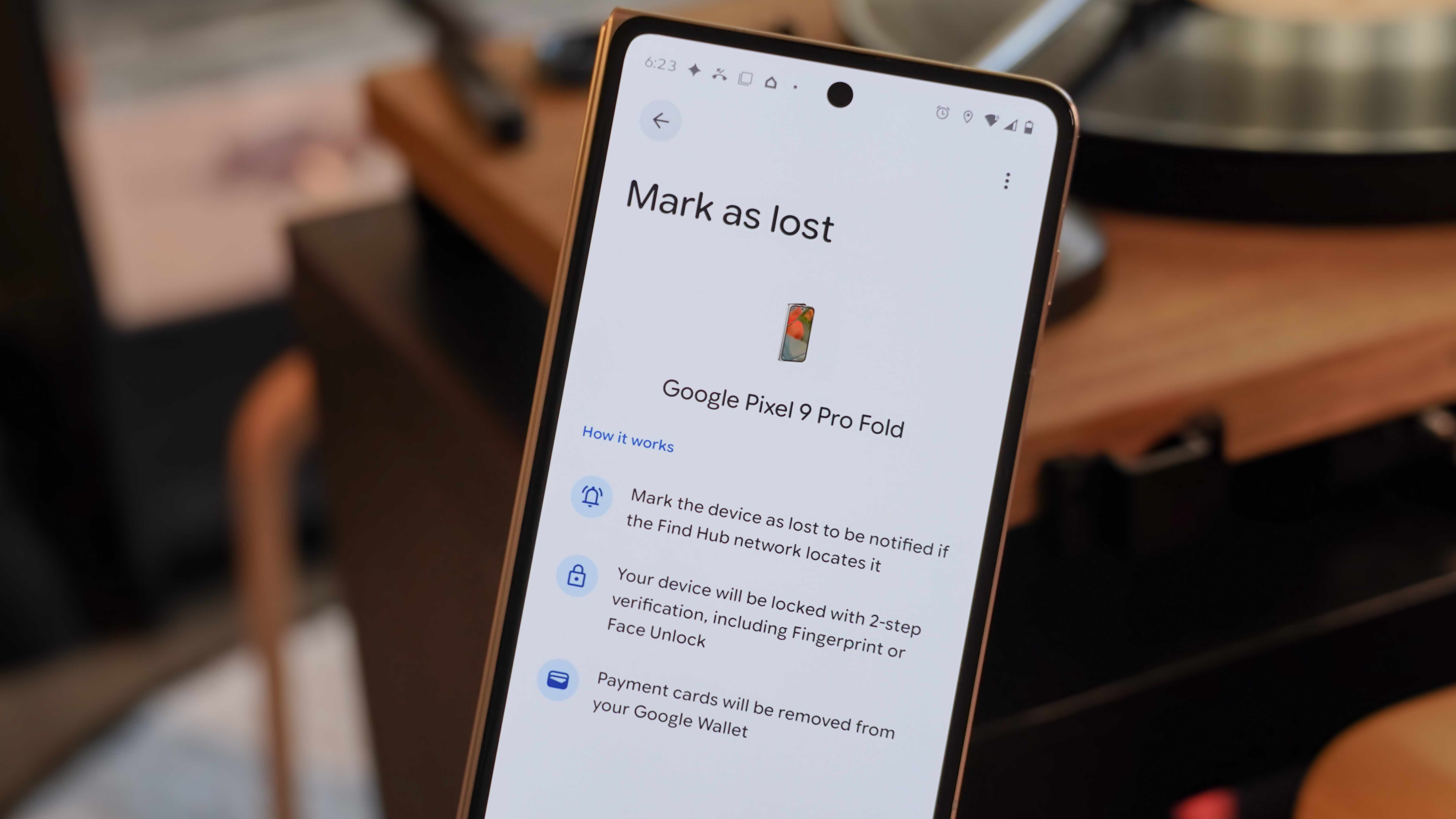
Of course, there are times when you lose a device away from home and might not be able to easily locate it. Find Hub can help in this situation too, with a Mark as lost mode. In the Find Hub app, locate your lost device in the Devices list and tap its name. Then, hit Mark as lost and Continue.
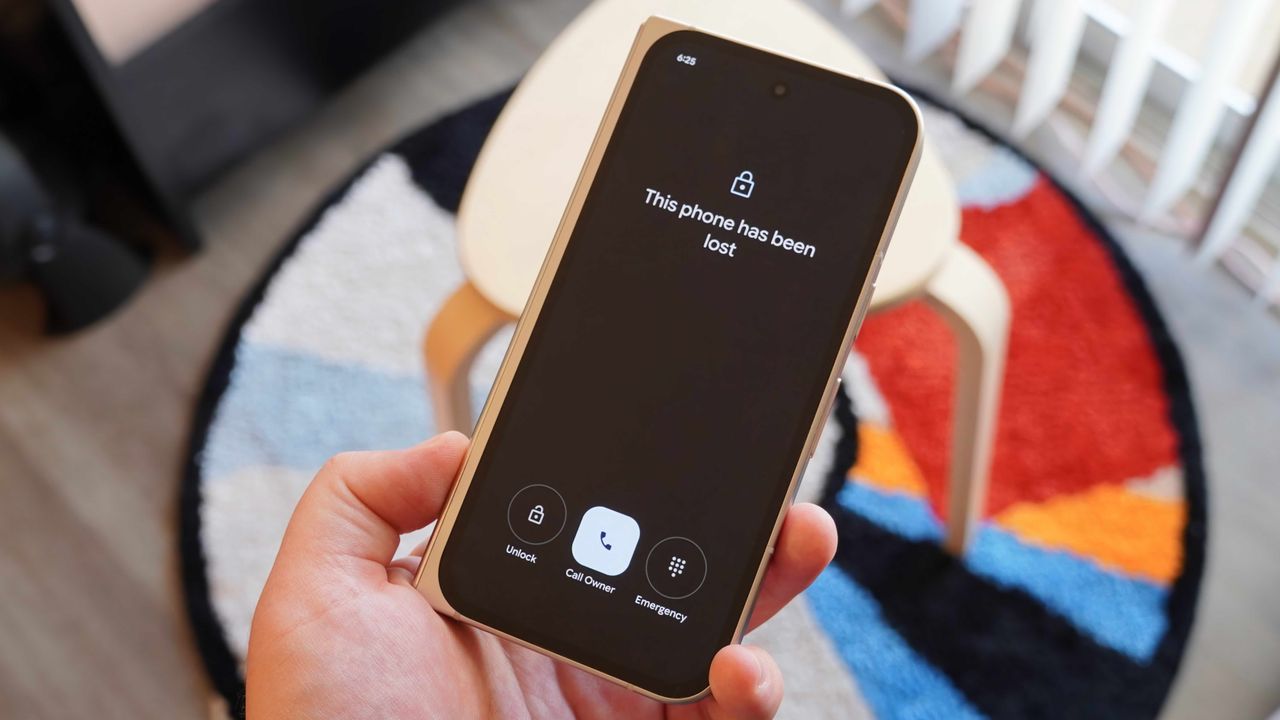
You’ll be able to add a contact phone number or message that appears on your lost device. It’ll completely lock down your lost phone, showing a black screen with a shortcut that allows anyone who finds it to instantly call the owner (you). When you find it, you’ll be able to unlock it from this screen, but you’ll need to use two-factor authentication. Alternatively, you can remove the lost device lock remotely using the Find Hub app or the Find Hub web client at https://www.google.com/android/find/.
Factory reset your device when all hope is lost
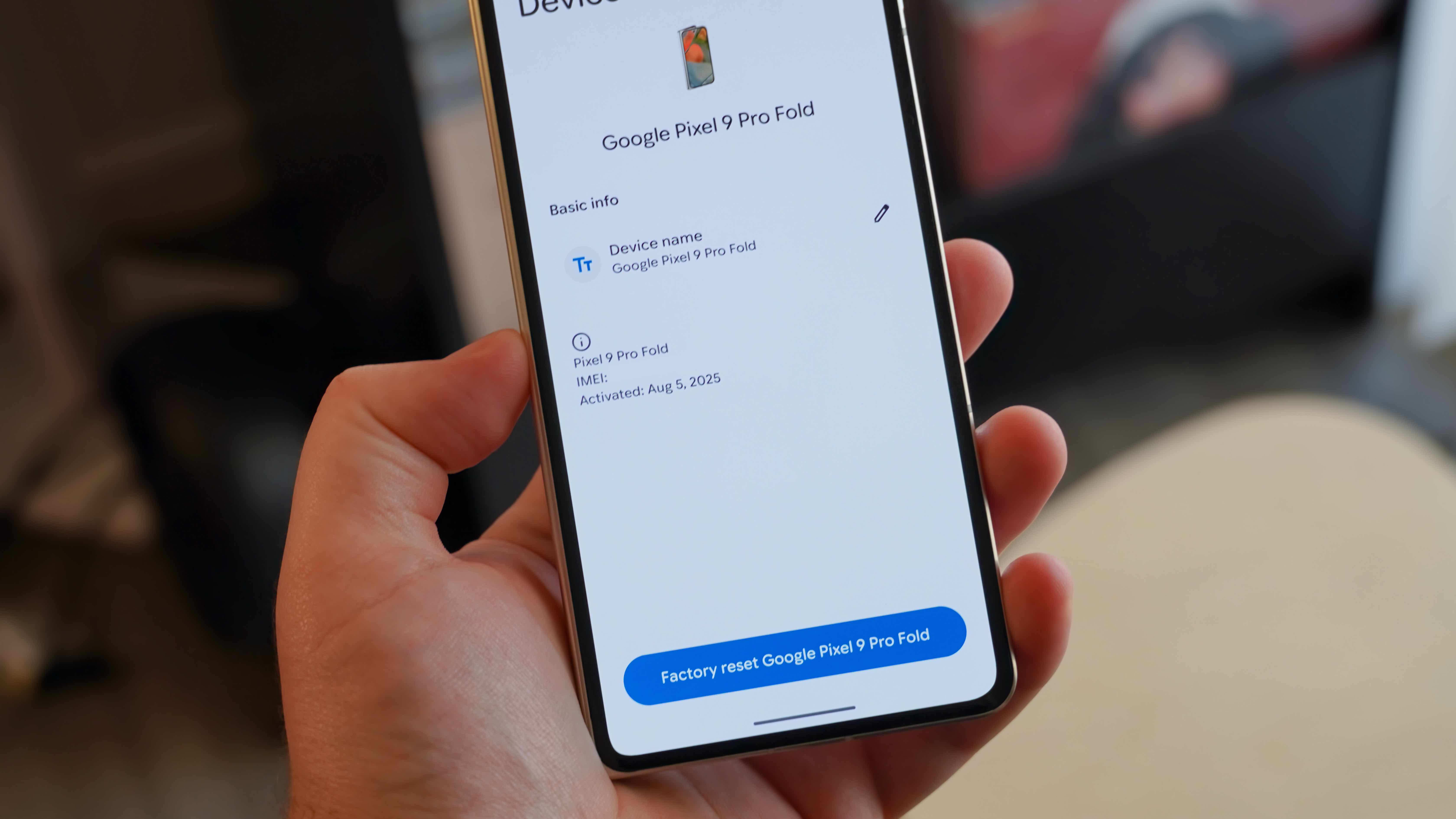
If you can’t regain access to your device, Find Hub can permanently erase it to ensure your data is never compromised. This should be your last resort, as erasing a lost device remotely will remove it from Find Hub, and you won’t be able to see its location. To do this, open the Find Hub app, find your device in the list, and tap it. Then press the Settings gear icon next to your device’s name. Then, tap either Factory reset or Remove device — the former is for phones, and the latter is for accessories.
Completing the factory reset process will remotely wipe your lost device, permanently deleting all its data. This certainly isn’t an easy decision to make, but erasing your device could be better than letting your data potentially fall into the wrong hands.
Google Find Hub works with Android-powered devices, Wear OS watches, Bluetooth accessories, and item trackers. When you learn to master it, you’ll have a much better chance of finding your lost devices and items.
Enter the Google ecosystem
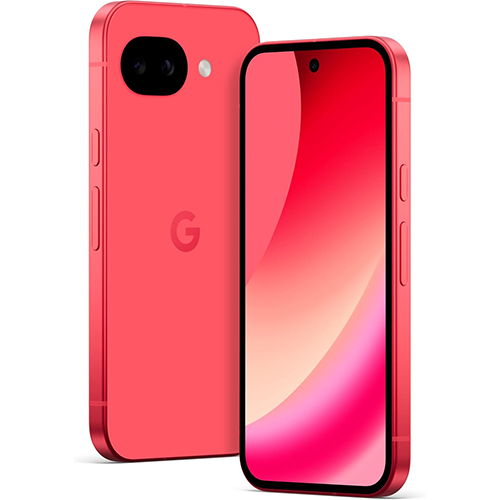
The Google Pixel 10a is the perfect starter phone to get into Android, and start using features like Find Hub. With it, you can track your phone, tablets, and accessories thanks to a large crowdsourced network.