Affiliate links on Android Authority may earn us a commission. Learn more.
NFC is a smartphone feature that isn’t nearly as appreciated as it should be. It’s not as flashy as UWB nor as integral as Wi-Fi, but NFC powers some of the simplest tools that help me plow through the mundanities of the day.
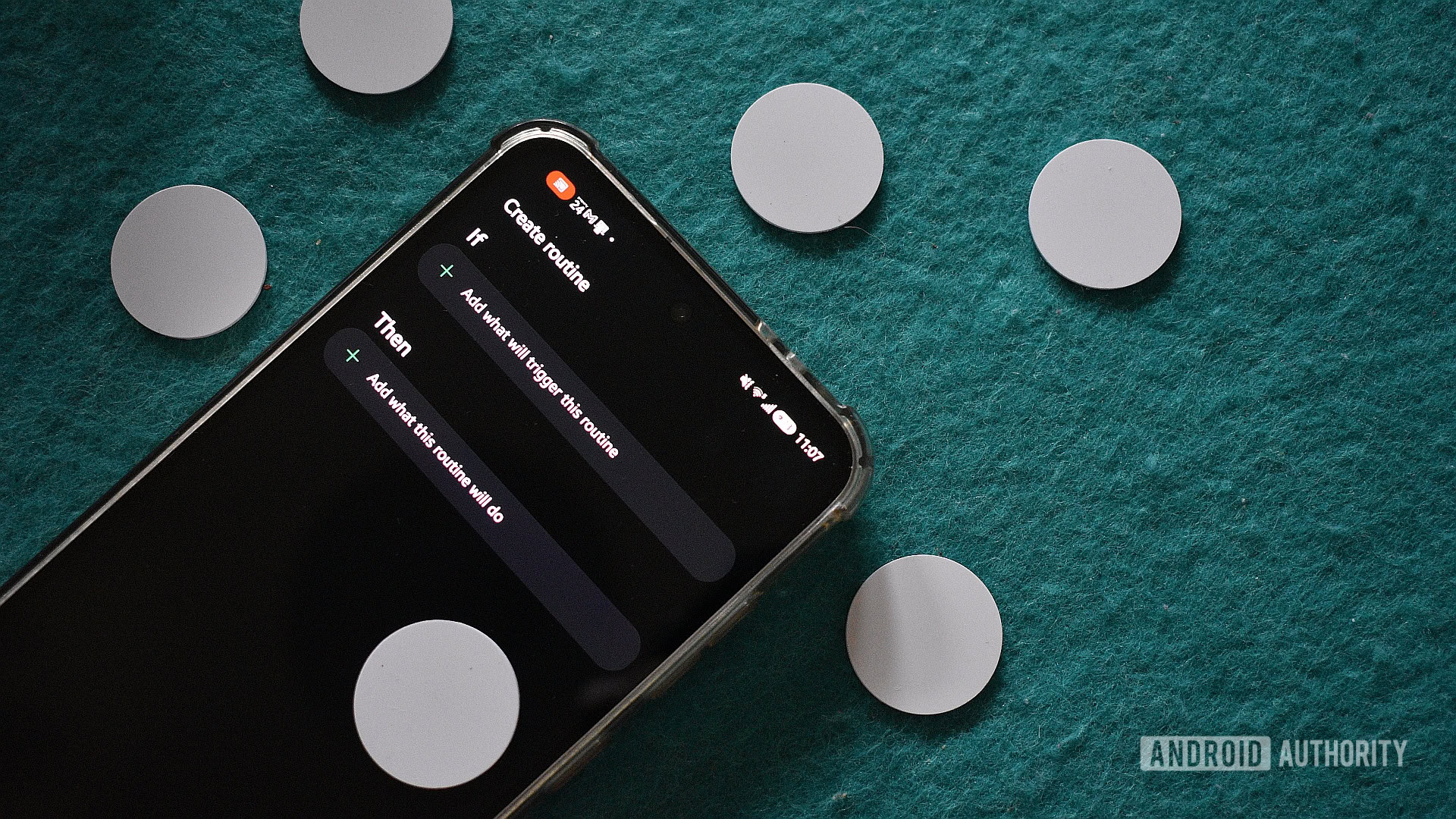
A few months ago, I picked up a bunch of NFC tags for a specific Android Auto automation project I was working on. I needed just two tags for that, so needless to say, I had plenty of spare chips that needed a purpose. And boy, have I found perfect uses for them!
Using these tags stuck to various locations in my house and car, Samsung’s Modes and Routines app powered up by the Routines+ Good Lock module, and a sprinkle of imagination, trial and error, and inspiration from others online, I can now tap my phone to smooth out the most fricative tasks in my life.
Firstly, I want to highlight the prerequisites for this project. You’ll need some spare NFC tags. They don’t need to be able to save information, as they’re merely triggers for my use case. Then you’ll need a Samsung phone. In theory, you can use any Android device with an automation tool like Tasker or MacroDroid, but that’s beyond the scope of this article.
Next, why NFC tags? They’re incredibly cheap. I picked up a pack of 10 for just $6, and given the myriad use cases, that’s an awful lot of value. They’re even cheaper in the US, where you can get a stack of 50 for just under $9.
While some Android apps can use NFC to trigger various actions, Modes and Routines really kick this ability up a notch. Setting an NFC tag as a trigger allows me to perform a series of sequential tasks, tasks that I would otherwise have to trigger manually. This means I’m saving minutes of faff every time I use one of these automations.
So, what are some of these routines that I’ve created? Some are integral to starting my morning (quite literally), while others just help me offload some of that mental stress so I can focus on other tasks and preparations. All the recipes below are fairly straightforward; you can use them as is, tweak them to better suit your needs, and add functionality as you see fit.
It’s pretty simple to find the Modes and Routines app on a Samsung phone, but if you need a guide, find it below.
You may want to name your routine and customize the NFC tag itself (use a permanent marker to write on it, use a custom sticker, or something else) to ensure you know which tag triggers which routine.
Now that you know how to create them, let’s get into those routines!
Ah, the morning! I can’t resist lying in bed just that little bit longer, and this means alarms have little to no effect on me. To combat this, I use a third-party alarm clock app called NFC Alarm Clock. This forces me to scan a specific NFC tag to stop the alarm. The trick? I place this tag beyond my bedroom — the coffee machine, the bathroom mirror, or the balcony works wonders.
What’s more, as I tap the chip to shut off the alarm, the specific Samsung routine also triggers. Morning light isn’t too bright in winter, so I set my display brightness to half and set Eye comfort shield to Adaptive. This helps keep my retinas from frying, sunny-side up.
As for the apps triggered by this routine, I rely on Google Calendar to check my schedule for the day and a single Google Keep note to organize everything else. Stacking these as an app pair allows me to compare and contrast. Booting these apps gives me time to review any notes I’ve written the night before and plan my day.
I allocate around five minutes to this process, after which I prompt Kagi News to load. This is my current preferred news app, and it helps me catch up on what happened in the world while I was sleeping.
Of course, there are plenty of additional options you could include here, from selecting a specific Spotify playlist curated for mornings to loading a coffee timer app to jump right into that caffeine kick.
Where to place the chip: The coffee machine, the fridge, or the bathroom shelf/door. Get creative, but avoid your bedside table.
I spend much of my day in front of my computer, and as a result, my phone sits on my desk alongside me, plugged into a charger and mirrored on my display.
To get a jump on the workday, I have a routine that enables some of the less obvious settings on my phone to ensure battery longevity, preserve my eyesight (I just got a prescription for glasses), and minimize friction.
Some of the highlights include keeping my phone unlocked, setting Battery protection to 85% since it’s constantly connected to my PC hub, and setting Link to Windows to On.
I’m a keen Pomodoro method user, so the last step is booting up my app of choice, Tomato. (Bonus: I find that the 50/15 split works best.)
Where I place the chip: The right-hand side of my desk.
I’ve been pushing myself to spend more time outdoors. As a result, I’ve really grown to enjoy taking long walks in the mornings. This particular routine ensures I leave the house with everything I need and all the necessary radios active.
I listen to podcasts while walking, too — I’m currently in the middle of a Titanic deep dive — so Bluetooth audio volume is adjusted to my preference, and Podcast Republic, my favorite podcasting app and one of my must-have Android Auto apps, opens soon after. Jumping right to the “Playing” screen lets me pick up from where I left off and tuck my phone away immediately.
Since I’ve left items at home in the past, I’ve found that a little pop-up reminder of items I must take along helps. This appears at the end of the routine after a brief delay. Following this, I prompt WhatsApp to open to my fiancée’s chat so I can send her my location before I head out.
I do wish Samsung offered an action to send messages to contacts. This would let me automatically message her when I leave the house, but unfortunately, this isn’t a feature just yet.
Where to place the chip: The front door or below the porch light switch.
This routine inspired this entire article. The initial problem I sought to solve here was to more easily connect and disconnect my and my fiancée’s phones to Android Auto. This involves two tags and a similar pair of routines on both phones. One tag enables the connection, and the other severs it. Depending on who wanted to connect to Android Auto, we’d tap the respective NFC tags, and boom! A virtual Android Auto connection button!