
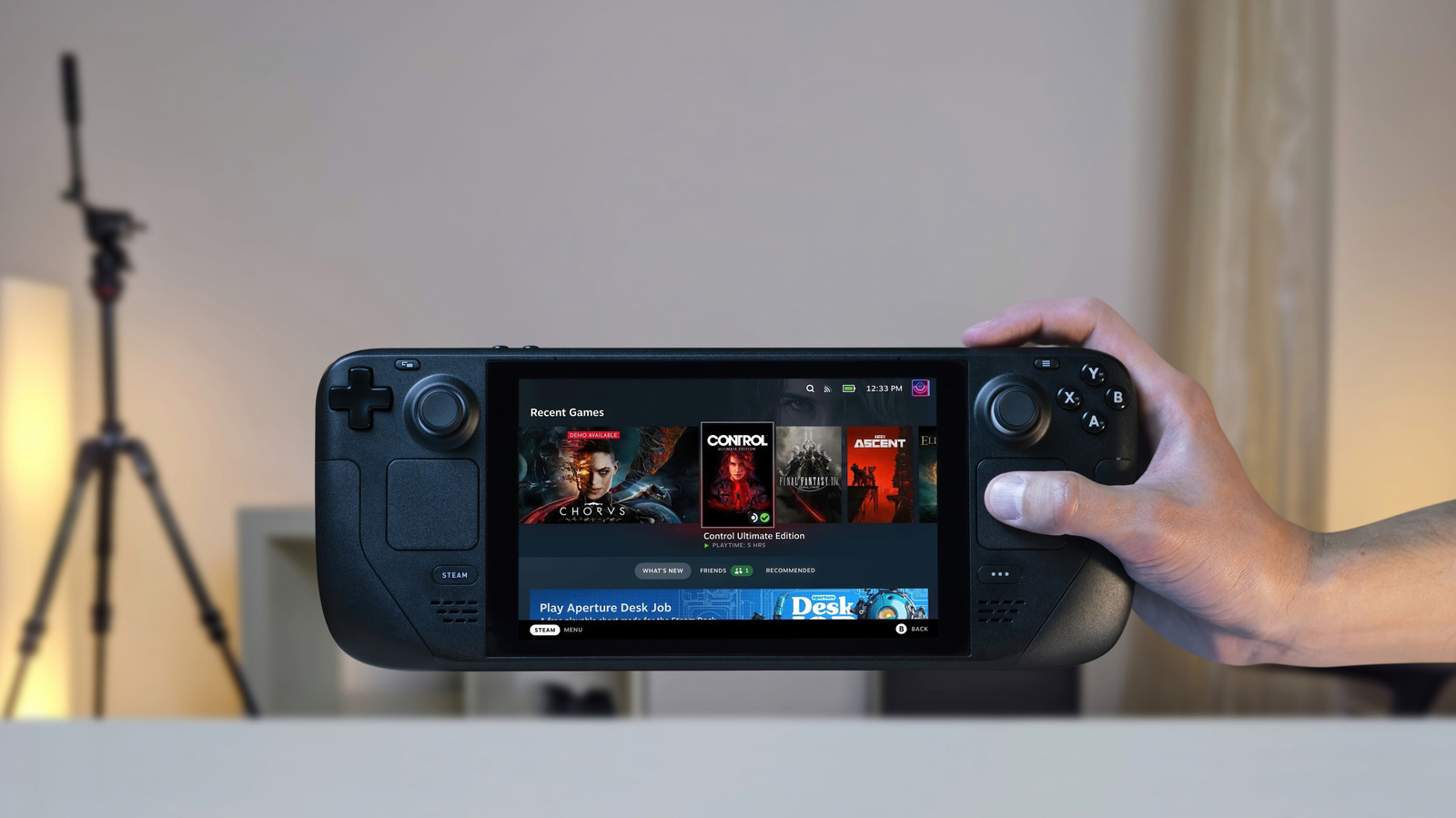
The Steam Deck is nothing short of a fantastic gaming handheld, but like any other computer, it can work perfectly today and suddenly start malfunctioning the next day. Most times a simple system restart gets the device back in working shape. Other times, it takes a not-so-simple factory reset to get things back in order.
If your Steam Deck has been plagued with performance issues, corrupted files or maybe an unbearable bug, a factory reset is usually the silver bullet and is also a great way to prepare the device for sale. But that bullet erases everything, both the good and the bad, including your beloved games if they're installed on the Steam Deck itself. So before going ahead with the reset, back up your save files, controller layouts and anything else living outside your Steam Cloud's reach. You can factory reset your Steam Deck from the Settings menu. If your unit no longer powers on normally, you can reset it from recovery mode instead.
You can trigger a factory reset using your console without needing a computer or USB drive. Simply:
Press the Steam button to open the main menu.
Scroll down to Advanced section near the bottom of the page.
Toggle on Reinstall SteamOS if you're troubleshooting.
Your Steam Deck will begin preparing the device for the reset, and after that it'll wipe your device. The process takes around 10-15 minutes depending on how much data you have stored. If you have a microSD card inserted, the factory reset shouldn't touch it, but it's best to take it out before starting anyway. Also, you'll need an internet connection to reinstall SteamOS after the reset.
Resetting your Steam Deck will erase everything saved to your internal storage and take the device back to the state it was in out of the box. So, if you're just trying to fix an issue and not preparing the device for a new owner, it's best to go through all available troubleshooting methods like restarting the device, checking for a pending software update or rolling back to a previous SteamOS version if you think an update caused the problem. Lastly, in the case that you're just preparing your Steam Deck for a new owner, toggle off Reinstall SteamOS. It's faster and wipes only your personal data.
If your Steam Deck is having issues booting normally, you can use recovery mode to factory reset it.
First, make sure the device is completely powered off by pressing the power button for 10 seconds.
Continue holding the "…" button once you hear the boot sound.
Do it correctly, and you'll enter the SteamOS menu.
Afterward, you'll see lines of commands and your Steam Deck will proceed to erase all user data, including user settings, local games and save data. If you want to roll back your Steam Deck to a previous version, you can do it from the same SteamOS menu.
Use the steps above to enter the SteamOS menu.
Select the option named Previous SteamOS-(followed by its exact build number).
Your Steam Deck will restart into the previous version of SteamOS while retaining all your user data. Do note that the rollback only lasts until the next restart.