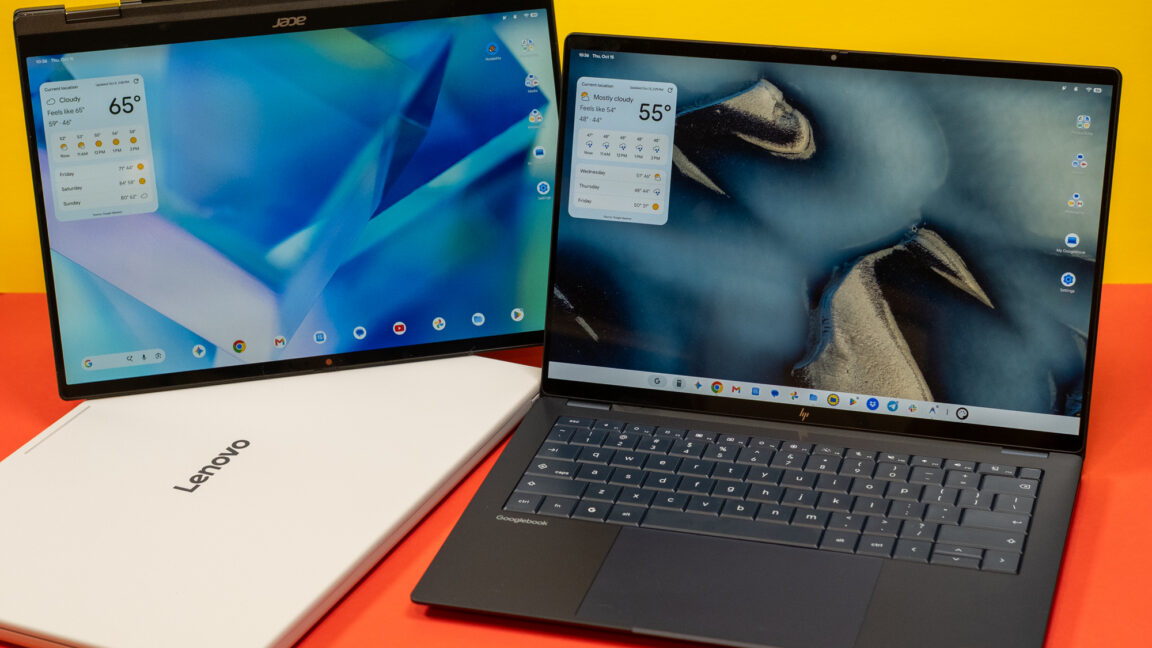
Android was designed for phones, but that hasn’t stopped Google from trying to adapt the OS and its apps to larger machines over the years. Googlebooks are just the latest attempt after tablets, Chromebooks, and foldables induced little change in how people interact with Android software. These new Android-powered laptops are designed to pick up where the web-focused ChromeOS left off, offering premium hardware and native support for Android apps.
Google sees Googlebooks as an alternative to Windows and macOS, but these platforms are entrenched with decades of software and UI conventions that keep users locked in. Googlebooks have to offer something very special to steal users away from either of the dominant operating systems.
For devoted Android phone users, there are some cool things in Googlebook OS, but the Android roots of these machines are impossible to miss. Sometimes it feels like using a Chromebook, and sometimes it feels like using a giant phone. It almost never feels like using a premium laptop, and that’s the problem.
While there were a few premium Chromebooks, the platform was really only successful in the budget segment. With Googlebooks, the company is almost conspicuously ignoring lower-cost options. And as most of the lineup clocks in at well over a thousand dollars, Googlebooks are not just a new take on budget-oriented Chromebooks.
All of the launch Googlebooks have excellent touchscreen displays, aluminum and magnesium bodies, biometric unlock (fingerprint or face), and big trackpads. There’s also the Glowbar, which doesn’t do very much right now. It lights up in Google colors when Gemini is activated with the wake word and during boot-up. It also shows the battery level when you plug in a Googlebook. The latter is modestly useful, but it’s not really a selling point.
There’s something in the lineup for most premium laptop buyers. If you want a convertible, there’s the Acer machine. Sleek and spendy? Asus and HP have you covered. Want something a little bigger? Lenovo has a 15.3-inch model with an HDMI port and USB-A.
The least-spendy model, the Acer Googlebook 14, starts at $899, and that’s a limited-time deal. Even this one gets a lot of the hardware right. It has a vibrant OLED screen, a metal chassis, and three USB-C ports (all of which can charge the laptop). However, you won’t get a haptic trackpad, just the old-fashioned kind that physically clicks. The supposedly DTS-tuned speakers also don’t sound great. Still, the hardware is at least as nice as any $900 Windows laptop. Acer hasn’t decided when the price will change or what it will be, but it’s at $899 for the rest of the year at least.
The next step up from that is the Dell XPS Googlebook at $999, but this model has an LCD instead of OLED. If you want the most capable Google laptops with OLED and haptic trackpads, you’re looking at spending at least $1,100 for the Lenovo version. This machine is solid, and the larger footprint allows for vents in the hinge instead of on the bottom. But I don’t love the slightly wobbly feel of the keys or the flex in the middle of the keyboard. The HP Googlebook 14 has a much nicer keyboard, a better overall look, and a Snapdragon X Elite chip inside. However, it’s also $1,300.
I appreciate that Google is pushing for things like haptic trackpads and high-resolution OLED screens, but the more expensive Googlebooks suffer from the same issue as premium Windows laptops—they don’t exist in a vacuum. If you’re spending $1,300 on a laptop, the entry-level MacBook Air is probably a better overall option for most people.
All of the launch Googlebooks have the same keyboard layout, which is a bit different from what you get on other laptops. There’s a G button that works similarly to the Windows button, and the top F-row has been revamped. You get the usual Windows staples like brightness and volume control, but there are also Android navigation buttons and a voice input key that activates the AI-powered Rambler.
Probably the best change to the Googlebook keyboard is ‘quick insert’ in place of ‘caps lock’ (you can still get caps lock with the Fn toggle). Just press this key to add emoji, recent screenshots, clipboard contents, recently visited URLs, and more. Admittedly, I don’t mind using function layers on a keyboard, so the extra step to access caps isn’t a concern. You may feel differently, and that’s okay.
Googlebooks come in both Intel and Snapdragon variants. I’ve been using both, and general performance feels about the same. There have been some reports of app issues with Intel-powered Googlebooks, but I haven’t run into any apps that will only run on Snapdragon.
The Snapdragon model (HP) seems to have a higher performance ceiling, if you can find a way to reach it. Gaming performance also appears better on Snapdragon, but even the heaviest Android games seem fine on the Intel models (Lenovo and Acer). It can be hard to push these machines when you’re relying on software that was originally designed to run on phones. Unsurprisingly, software proves to be the biggest hurdle for Googlebooks.
Google has flirted with Android on larger screens on a few occasions, mostly with tablets and tablets that impersonate laptops. This is the first time it has totally revamped the OS for a laptop, but it’s still Android under the hood. Sometimes that’s good, and other times not so much.
Setting up a Googlebook is a snap for Android users. Just like configuring a new phone, you can scan a QR code with your current phone to copy your accounts, data, and apps over automatically. You can be up and running in minutes, and your phone will integrate deeply with the OS. Well, provided it runs Android 17. That’s going to be a sticking point, since most phones don’t have that update yet.
With Google’s “Better Together” services, a Googlebook can access files on your Android 17 phone, sync notifications, remember where you left off in apps, and even mirror apps from your phone. This all sounds great, and when it works, the experience can be good. However, there are various limitations and bugs that get in the way.
To remain in contact, the phone and Googlebook need to be on the same Wi-Fi network, and switching to other networks can break the connection in annoying ways. Even when the devices appear to have a solid connection, I have rarely seen any hint of Google’s Continue On feature, which is supposed to let you pick up where you left off in a phone app. Mirroring phone apps on your laptop can also be handy, but the performance is varying degrees of bad, and apps with system-level security features won’t work at all. You are also limited to one app at a time, and they won’t stay open in the background.
Accessing the files on your phone from the laptop is a good idea, but the transfer speed is often sluggish. More annoyingly, the connection only goes one way—the Files app on the Googlebook can see your phone, but the Google Files app on a phone can’t see the Googlebook. Speaking of the Files app, this is emblematic of how far behind Google is with desktop software. The app lacks basic things like tabs and support for network shares. It’s nice that it can access my phone, but it feels very restrictive if you’re used to Finder or Windows Explorer.
Google has at least done a good job of making Android look like a desktop OS. There’s a proper desktop that you can fill with app shortcuts, folders, widgets, and files. There’s a folder in the storage tree where you can manage that content, or you can simply drag things onto it from a file manager. You also get ChromeOS-style split-screen support and multiple desktops. These features work, but they’re not as intuitive or capable as what you get on either macOS or Windows.
AI is a big part of the Googlebook experience. Google talks a lot about Magic Pointer, which you can activate by wiggling the cursor. This allows you to hand any content on your screen over to Gemini, but calling it magic is a little silly. You can have it translate text, make images, create calendar appointments, and so on. You’re basically feeding Gemini screenshots and asking it to do things.
Magic Pointer can be useful sometimes, but it’s hardly revolutionary to streamline the process of feeding screen content into an AI by attaching it to the mouse. You still have to contend with the inaccuracy of Gemini. Even adding calendar appointments can fail, which means you have to double-check almost everything the AI does.
Magic Pointer is an optional feature, and you can adjust the sensitivity of the gesture. However, I never found a level that I was entirely happy to use. Too much sensitivity, and the gesture triggers when you don’t intend it. Too little, and you have to shake the mouse so hard that the cursor is probably going to be nowhere near what you wanted to highlight.
Rambler, which debuted on the Pixel 11 lineup, is included with all Googlebooks. This AI-powered voice input feature works in any text field on the laptop, which is handy if you want to add a lot of text without typing and don’t mind sounding like a robot. This has been popular on phones, and most people using it on a Googlebook will probably be impressed.
Create My Widget is another head-scratcher, though. The pitch is that you can simply describe the widget you want, and the AI will place it on your desktop. It sounds cool, but in reality, the content you can rope in is so limited as to make the feature largely useless. If you want calendar countdowns and sports scores, great. If you want system info or app content, you’re out of luck.
Googlebooks come with the Play Store, which is crammed full of all the Android apps you could ever want. But desktop apps? Google says it has worked with devs to optimize apps for Googlebooks, and some software has been newly built from the ground up for a desktop experience. For example, Chrome on Googlebooks is a mostly desktop-class experience. It’s missing a few niche features like split windows, tab groups, and multiple profiles, but it will work with all of your extensions.
On other platforms, I’ve routinely used desktop clients for Dropbox and Drive to sync files. I had hoped something similar would be possible on these Android laptops, but no such luck. Dropbox runs on a Googlebook, but it’s not optimized. The UI is clunky, and even if you save a folder offline, it only updates when you refresh the app manually (just like a phone running the app).
Meanwhile, the Drive app isn’t even an Android app—it’s a progressive web app (PWA). So you can’t set it up to sync a folder to the device. All you have is the option to make individual files in Drive available offline. Without a real desktop app experience here, you actually get a lot more functionality out of Google’s cloud storage system on Windows and macOS.
Drive isn’t the only Google web app masquerading as a native app. Gmail and Calendar are also PWAs on the Googlebook, offering the same experience you’d get opening them in a browser tab. Gmail exists as an Android app with a large screen format. Why not adapt that for Googlebooks? Real operating systems have email apps. If you’re just going to end up in a web app, why not buy a Chromebook for a third of the price?