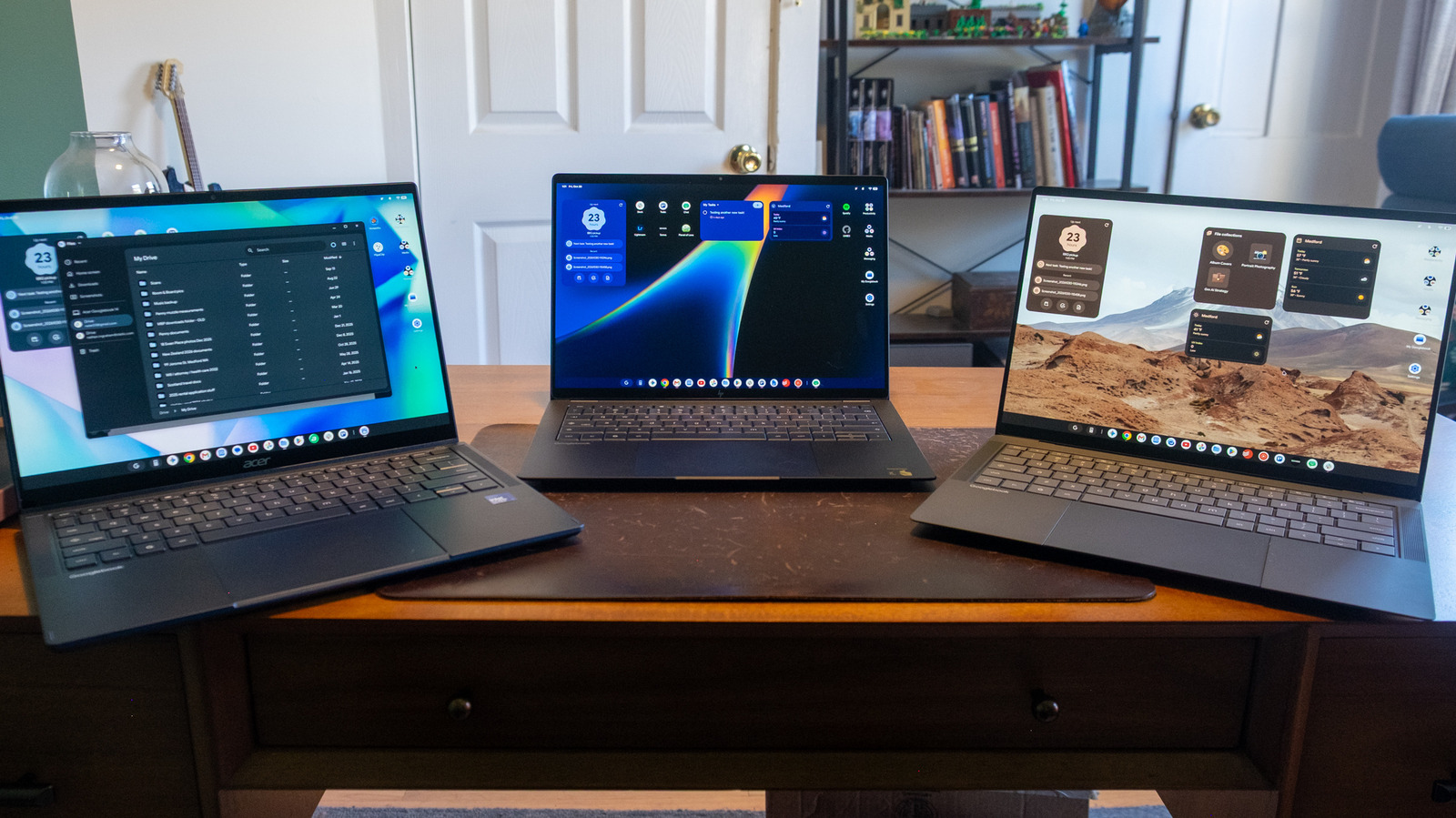
Despite good initial hardware, the Googlebook OS still needs a lot of work.
It's somehow been almost two and a half years since Google said it would migrate its laptop operating system from ChromeOS to Android, and the results of that effort are finally out in the wild. Google and its hardware partners officially launched Googlebooks earlier this month with the promise of tight integration between your Android phone and this new, Android-powered laptop OS, plenty of AI-powered tricks and premium hardware.
As someone who has used and tested ChromeOS extensively over the last decade (!), I've been wondering what exactly would differentiate the Googlebook OS from ChromeOS. Google's initial Googlebook introduction in May didn't give us a ton of information, but a big demo event and several weeks of testing has given me a better idea of what the company is shooting for. And after my time with Googlebooks, I can say that while there might be benefits internally for Google (as well as third-party developers) to move from ChromeOS to Android, the upside isn't fully there for potential buyers yet — particularly when you consider how expensive Googlebooks are.
This isn't a formal review of one Googlebook but rather an evaluation of the operating system Google is pushing. But it's worth talking quickly about the Googlebook hardware launching alongside the OS. Most of my testing was done on the $1,299 ASUS Googlebook 14, an extremely thin and light laptop that weighs in at only 2.2 pounds. It features an OLED touchscreen with Corning's Gorilla Matte glass, which significantly cuts down on reflections. From a specs standpoint, it runs on an Intel Core Ultra 5 chip with 16GB of RAM and 512GB of storage. It's a really lovely laptop, as it should be at that price point. I also did some testing on the Acer Googlebook 14 and HP's Googlebook 14, the latter of which runs on the Snapdragon X Elite X1E-80-100 processor. Performance felt similar whether using the Intel or Qualcomm models, though I anecdotally feel like battery life was better and fans kicked in less frequently on the HP.
The Googlebook introduction positioned these new devices as premium computers, and indeed they are priced to match that claim. The least expensive Googlebook out there, Acer's Googlebook 14, starts at $899 — and that's the only Googlebook under $1,000. And while various manufacturers (including Google itself) have released premium, expensive Chromebooks over the years, Acer's $899 Googlebook is more expensive than nearly all the Chromebooks on the market.
Eventually, Googlebooks will fully replace ChromeOS, so I expect a future wave of devices will focus on affordable options. But for now, Googlebooks are strictly a premium experience with a price to match, and that'll be a big part of my evaluation of the OS. It's always been easier to forgive any limitations you might find on a Chromebook when they were priced at $400 or $500, but it's a lot harder when we're in the $1,000 range where you can get a more versatile Mac or Windows PC.
Setting up a Chromebook isn't hard — you generally just log in with your Google account. But Google is emphasizing the ties between your Android phone and Googlebook right from the first step, where you're prompted to set up with an Android device or even an iPhone or iPad. When I selected Android device, a notification popped up on my Pixel 11 asking me if I wanted to use it to set up my Googlebook. The laptop, meanwhile, had a QR code for scanning at the ready.
After scanning that code, my Googlebook connected to Wi-Fi and then asked me if I wanted to use the Google account from my phone. After that, I just confirmed my name and profile picture, set a login password and added a fingerprint to unlock the device. Finally, it asked if I wanted to copy apps and data from my phone, which didn't take long at all. I don't think all that much was shared, but there's a customize option for those who want to be specific about what moves over. Finally, I got a quick tour of some of the Googlebook's Gemini-powered features like Magic Pointer, the Quick Insert key and using voice chat with Gemini Live.
I was also prompted to set up the connection between my phone and the laptop so I could do things like see notifications and files from my phone on my Googlebook. That involved giving some services permission on both devices, but it didn't take long nor was it too complicated for the average user.
Once everything was set up, I was greeted with a desktop that, unsurprisingly, was quite similar to ChromeOS. There's a taskbar along the bottom with shortcuts to apps like Chrome, Gemini, Gmail and a handful of other Google services, and there are also some shortcuts on the desktop that are organized in folders for productivity (apps like Docs and Drive), media (voice recorder, PDF viewer and camera) and messaging (Gmail, Messages and Meet). Wisely, the Googlebook also booted up with an in-depth walkthrough for things like accessing quick settings, changing your wallpaper and screensaver, finding files, managing your windows and all the initial things you'll want to be able to do on a laptop. I definitely appreciated the tutorial — not that the system would have been unfriendly to use without it, but having some guidance for tips and tricks in a brand-new OS is smart.
While it's easy to mistake the Googlebook UI for ChromeOS, there are a few subtle differences here. The taskbar is exclusively for apps; the time, date, notifications and quick access to system settings are in a thin strip at the top of the screen now. I'm hit or miss on that change. On the one hand, the ChromeOS taskbar feels pretty cluttered now, but on the other I don't love giving up vertical pixels to the info bar at the top of the screen.
Unfortunately, Google also removed a few handy features that were in the ChromeOS taskbar, as well. For example, clicking on the date and time would bring up a calendar and anything on your Google Tasks list, but that integration is no longer present. ChromeOS also has a little button where you can pin files and see ones you've recently opened. I think Google expects you to replace those features with widgets that you can add to your desktop, a feature that Chrome OS doesn't support.
Google's Chrome browser is not perfect, but it's the most popular browser in the world and basically every site works well on it. That was perhaps the biggest selling point for ChromeOS: Many people do the vast majority of their computing in a browser, and a Chromebook offered a great browsing experience. Naturally, Chrome was the first place I started on my Googlebook, as I planned to open the various saved tab groups I had set up on my Mac and continue my work.
Those tab groups simply did not appear. Even though you can sync tab groups across the desktop, Android and iOS versions of Chrome, those groups don't show up on a Googlebook. I find it hard to put into words how bad it is to have such a baseline, crucial feature missing from a brand-new product that's ostensibly meant to replace Chromebooks. Google says it'll be added in a future update, but it's not here now and that's a shame.
Similarly, I initially was unable to install web apps on my Googlebook. On ChromeOS, you can take something like the web version of Slack (which is identical to the desktop app) and have it open in its own window, with a dedicated app icon in the taskbar rather than have it as a tab in a crowded Chrome window. For the first week or so I was using a Googlebook, I was only able to save shortcuts to my desktop that would open apps like Slack and Trello in my main Chrome window as tabs. This was fixed with a subsequent Chrome update, so now I use those apps in their own windows. But between the lack of tab group syncing and this initial web app issue, I was left feeling that my Googlebook wasn't fully baked.
Just as on Chromebooks, Googlebooks give you two main options for apps: web-based tools or Android apps from the Google Play Store. It's been about 10 years since Google first put the Play Store on Chromebooks, and it was a pretty big deal then to expand the laptop beyond its "just a browser" reputation. Ten years later, though, and on a new platform, many of the same issues persist.
The biggest issue by far is that Android developers have never embraced building apps for larger screens. That situation has improved over the years, as many apps can dynamically adjust to fill a bigger display. But too many apps just stretch a view that works on a phone over a much bigger space without taking advantage of it.
Going back to Slack again, I considered using the Android app when the web app wouldn't install properly. But while the desktop version of Slack has a multi-column view that's essential for keeping up with a busy workplace, the Android app only shows you one view at a time, regardless of how big your screen is. Slack supports a much better large-screen view on the iPad, so there's no reason they couldn't do so here as well. It's just that Android tablets and Chromebooks have never gotten attention from developers. As long as that's the case, chances are good your favorite Android app won't feel quite at home on a Googlebook.
To be clear, though, the situation is definitely better than it was a decade ago. Google used its launch of the Pixel Tablet in 2023 to revamp its core set of apps for bigger screens, and now many of those apps feel right at home on a Googlebook. Android versions of Keep, Google Home, Calendar, Photos, Google TV and numerous others work well after you install them.
Google is also doing its best to push people towards web apps when they're better suited. Installing Google Chat from the Play Store sets up the web-based app, for example, and the Gmail shortcut in the taskbar opens your account in its own window but with the same familiar Gmail web interface. It's always been a bit confusing to know whether you should install an app from the Play Store or use its web-based counterpart — but in the case of Google's own apps at least, the Play Store knows which kind is best to install for a Googlebook.
And while many third-party apps don't take advantage of larger screens, there are also plenty that do. Todoist and Spotify are native to the Googlebook and display multiple columns of info, while Adobe Lightroom pulled up my library quickly and synced edits I made on the Googlebook back to my Mac without any hiccups.
But of course, there are likely apps you use on Windows or Mac that won't be available here. There might be substitutes, but you won't be able to install things like Adobe Premiere or Logic Pro here. And while most people can do most things through a browser or via the Android apps you can get on a Googlebook, the question remains what the benefits are for moving your workflow to a totally new platform that might not have all the apps you need.
Native gaming, of course, is a bit of a non-starter as well. Sure, you can install games from the Play Store — I checked out Teenage Mutant Ninja Turtles: Shredder's Revenge and Limbo, and they ran without issues. Shredder's Revenge even had keyboard controls already mapped out. But these aren't exactly new or cutting-edge titles.
One nice perk that Google is including with Googlebooks is a year of GeForce Now "Fast Pass" access. GeForce Now lets you stream games you own from storefronts like Steam and the Epic Games Store, and the "Fast Pass" here provides up to 50 hours of gaming per month. There are also no ads like you get in the normal free GeForce Now tier, and it gives you priority access as well (hence the name). Obviously, this doesn't replace a proper gaming PC, but it does provide you with an option for playing on a Googlebook as long as you have an internet connection.
So if a Googlebook's app support isn't all that different from what you could get for years on a Chromebook, what really sets the new platform apart? Integration with your Android phone, at least that's how it seems from the way Google is pitching these laptops. It's not an illogical strategy: Android is used by billions, and the smartphone is the most important device in most people's lives. And as someone well versed in Apple's ecosystem, there's no doubt that the close ties between an iPhone and a Mac (or iPad, or Apple Watch) are a major selling point.
There are a few key parts of this integration, the most prominent of which is probably casting apps from your phone. In the taskbar, next to the "G" icon where you can find all your installed apps is another little icon that looks ilke a smartphone. Clicking that brings up all the apps you have on your phone, and picking an app opens it in its own window, as if it is running on your Googlebook itself. Rather than Apple's iPhone mirroring approach, casting apps works independently from what's happening directly on your phone. But in both cases, it's a good way to quickly check on things that started on a phone, like calling a Lyft, adjusting playback to Sonos speakers or checking on a delivery order you placed in DoorDash. Once I had things set up on both devices, casting apps worked reliably. Interestingly, the apps aren't limited to being in a vertically-oriented phone-sized window — you can expand and resize the window and the app will adjust accordingly.
Transferring an app from my phone to a Googlebook didn't feel quite as useful to me, but it can be handy in a pinch. If you have a tab open in Chrome or are composing an email in Gmail on your phone, for example, you'll see a little icon on the right side of the taskbar for the corresponding app. Clicking it opens up what you're doing on your phone directly on your Googlebook. So if you're in the middle of typing out an email and want to do it on a big screen, one click will pick things right up in your draft.
It took me a little while to understand the behavior that triggers this transition. In Gmail, you need to be composing an email, whether it's a new message or a reply. If I was just reading an email, I wouldn't get the icon in the taskbar to read it on my laptop. But in Google Keep, just looking at a specific note on my phone was enough to get a shortcut to that content in the Googlebook taskbar. I also ran into a handful of occasions when the shortcut for whatever app I had open on my phone just wouldn't show up, even if it had worked previously. I'd say that this feature is still a work in progress, between the inconsistencies I experienced and the need for third-party developers to enable it in their own apps.