Affiliate links on Android Authority may earn us a commission. Learn more.
Edge Panels is one of my favorite One UI features. I use it on my Galaxy S26 Ultra every day to quickly access apps, contacts, the clipboard, and occasionally tools like Compass. The feature also makes opening apps in different multitasking views a little easier.
Because I use Edge Panels extensively, I’ve developed muscle memory such that my thumb automatically reaches for it whenever I want any of those items. This is helpful on my Galaxy phone, but it’s a problem when I switch to a non-Galaxy phone, like my Pixel 8a, which lacks a native sidebar.
Thankfully, you can get a sidebar on any Android phone with a free app called Panels. Since I’ve long wished I had a Samsung-style sidebar on my Pixel 8a, I finally added one.
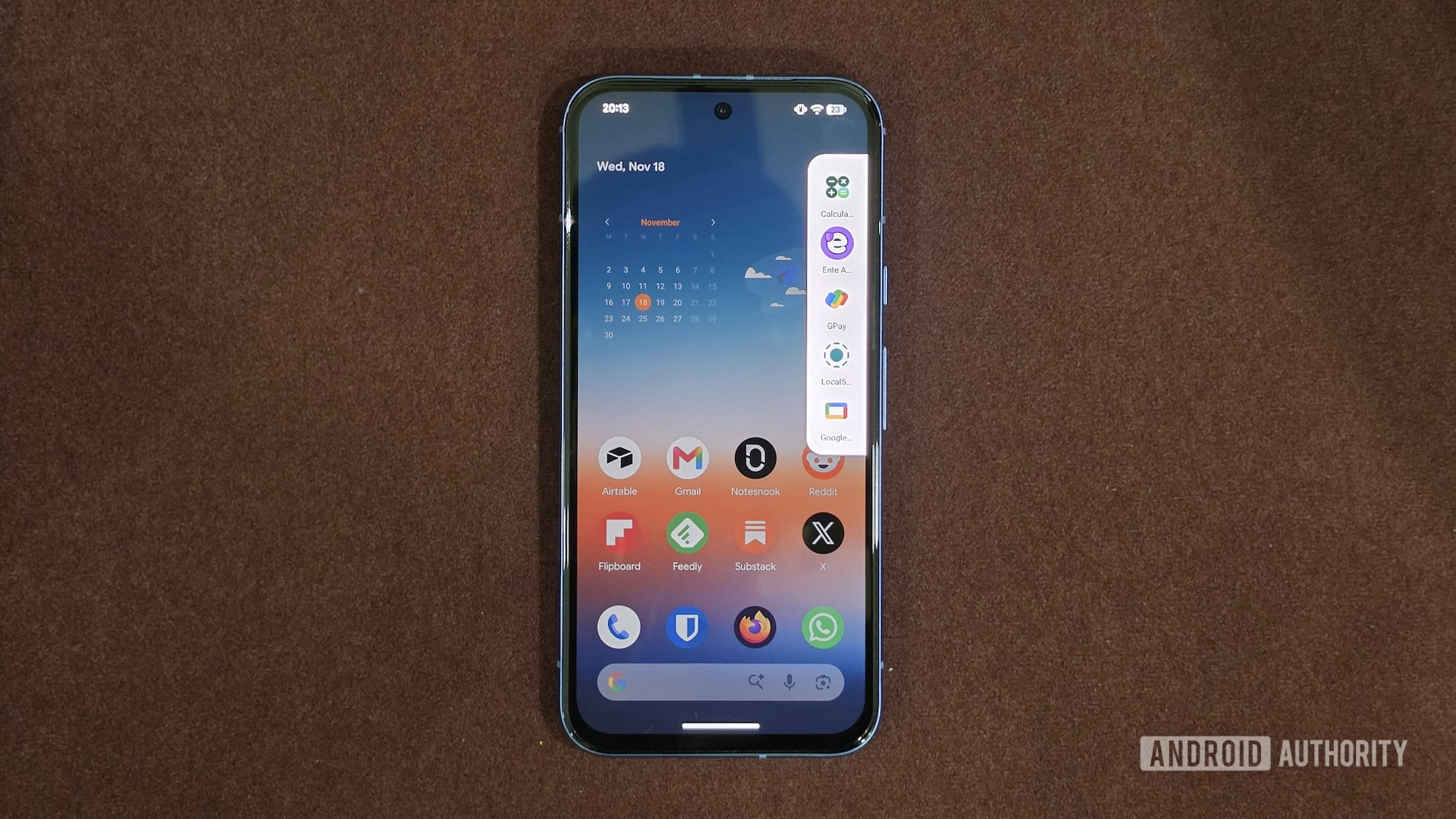
Panels (listed as Panels – sidebar launcher) is a free app that lets you add a sidebar — similar to Samsung’s Edge Panels — along any of the four edges of your phone’s screen. This sidebar is highly customizable, so you can configure everything about it, from how it appears and behaves to what it shows, to your preference.
Compared to Samsung’s Edge Panels, which is quite limited in terms of what you can add to the panels, the Panels app lets you add not just your favorite apps and contacts, but also your most-visited websites, app shortcuts, and widgets. You can even add folders to the sidebar to keep similar items organized. Besides, Panels lets you open apps in different multitasking views, just like Edge Panels.
The Panels app operates on a freemium model. As such, you can access most of the core features for free but need to upgrade to the full version, which costs $1.50, to unlock an ad-free experience, advanced customization options, support for unlimited items, and more.
Panels offers plenty of options to help you set up the sidebar exactly how you want. Since I wanted a sidebar similar to the Edge Panels on my Galaxy phone, my setup was pretty straightforward. Here’s what I did.
After downloading Panels and granting it the necessary permissions, I first removed all the pre-added apps from the apps panel. Then I added the same set of apps I have on my Galaxy phone’s Edge Panels, such as Calculator, Bitwarden, Ente Auth, and a couple of payment apps. I also added my high-frequency contacts to the sidebar. That way, I can quickly call or message them without opening dedicated apps.
Removing and adding apps to the sidebar is easy. Swipe left on the sidebar handle along the right edge of the screen to reveal the sidebar. This is your sidebar’s main panel, where all your apps and shortcuts go. Here, long-tap an app you want to remove and select Remove. To add a new app, tap the plus (+) button, select Application, and tick the checkbox next to your desired app, and hit Done. You can also select multiple apps.
Next, I changed a few sidebar settings to bring its appearance and behavior more in line with Edge Panels. For instance, the sidebar shows two columns by default, so I changed it to one. You can do this too. Long-tap the sidebar, then hit the hamburger menu to access the settings. Select View and drag the Columns slider to the left.
I also moved the sidebar higher up along the edge, just like on my Galaxy phone. This wasn’t part of my initial configuration. I did it a few days later because, with the sidebar in its default position, I kept accidentally going back when I wanted to access the sidebar. To do this, drag the Vertical position slider left. Alternatively, drag it right to move the sidebar handle lower.
Panels lets you customize other aspects of the sidebar, too. For example, you can configure things like the visible width of the handle, whether to prioritize the back gesture over the trigger gesture, and more. All of these options are available under the Trigger tab. You can also customize the sidebar’s appearance if you don’t like its default look. Head to Colors, toggle off Use default colors, and configure your own color theme.
With your sidebar configured, accessing and using it is easy. Swipe left on the sidebar handle to reveal it, then tap the item you want to open. For more options, like creating an app pair or opening an app in a freeform window, long-tap the app and select an appropriate option from the menu.
Having used Edge Panels on my Galaxy phone for years and the Panels app on my Pixel for nearly a month, I appreciate Panels for certain things, but wish it were better at others. For instance, I like that Panels offers so many customization options, as that gives me more control over my sidebar’s appearance and behavior. I also appreciate the ability to add app shortcuts, websites, and widgets.
That said, I wish Panels handled certain things better. Gesture conflict is one of them. Unlike Edge Panels, which is baked into One UI and coexists with gesture navigation without interfering with the back-swipe gesture, Panels can occasionally run into problems. I’ve largely fixed this by moving the sidebar up, as I mentioned earlier.
Another thing I wish Panels did better on my Pixel was opening apps in a freeform window. I can only resize the freeform window, but I can’t move it around. Likewise, there are no controls to close, minimize, or open the app in full-screen view. You need to bring up the Recents menu to do that.
This is a Pixel-specific issue, though, because when I used Panels on my Galaxy phone, it worked just fine. The reason? Unlike One UI, which natively supports floating windows through its Pop-up View feature and provides integrated window-management controls, Pixel UI doesn’t offer an equivalent floating-window interface. So, when Panels opens an app in a freeform window on a Pixel phone, it doesn’t get the same integrated controls that it does on a Galaxy phone.
Panels has helped me mimic my Galaxy phone’s Edge Panels-style sidebar on my Pixel 8a to a large extent, though I wish I could add tools like Compass and clipboard. The app works as advertised, and I’ve had no major issues with it so far. However, I wish the interface were easier to navigate and displayed fewer ads, especially when I’m in the middle of customizing the sidebar, as that would make for a more pleasant experience.