
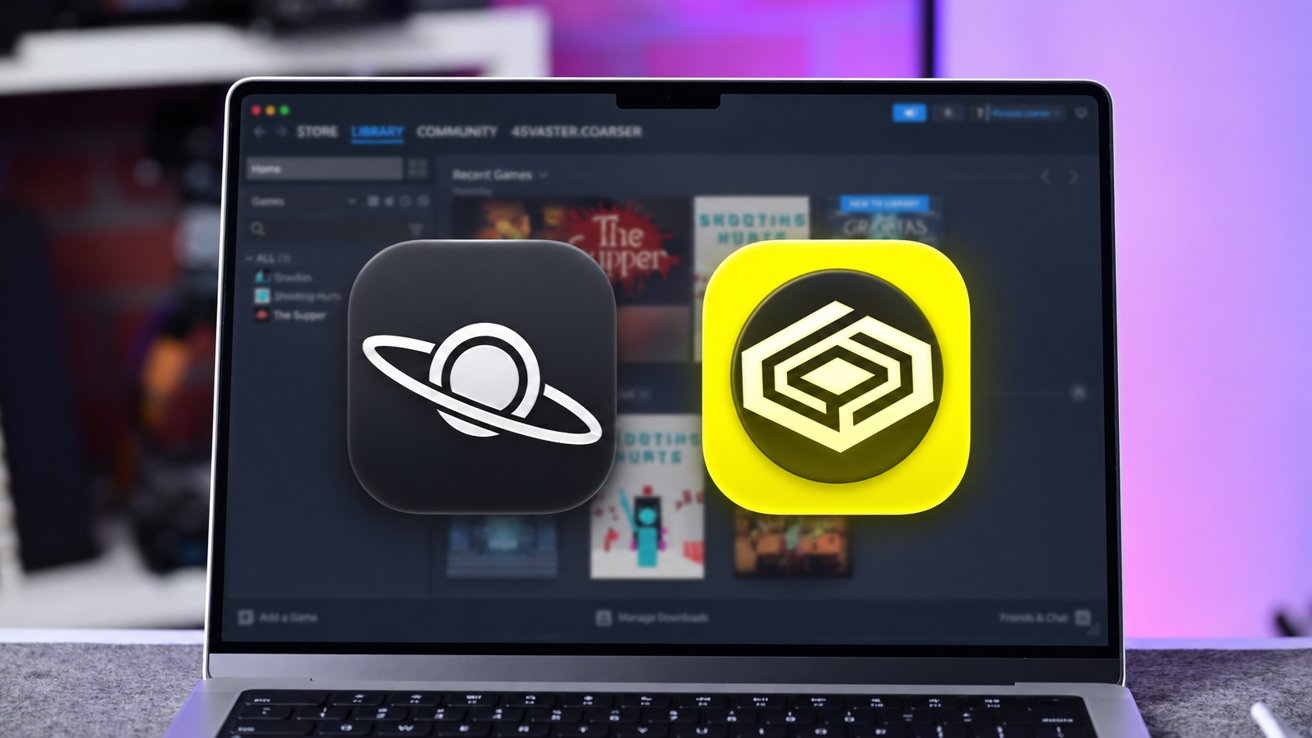
NotProton lets Mac owners install and play Windows games through the native Steam client without installing Windows. Here’s how to set it up and what worked on our M3 MacBook Air.
 Running Windows games on Mac
Steam for Mac normally won’t let you install Windows-only games, but NotProton offers a way around that limitation. We used it to launch two Windows games, including a 3D title whose Mac version no longer works on modern macOS releases.
Both games launched with functioning graphics, audio, and controls, although one eventually froze. Getting everything running also required some troubleshooting with CrossOver and macOS permissions.
NotProton brings Steam Play functionality to the native macOS Steam client, allowing Mac owners to install and launch Windows games through compatibility software.
Continue Reading on AppleInsider | Discuss on our Forums