Affiliate links on Android Authority may earn us a commission. Learn more.
Mobile ads are becoming a significant issue on Android. I’ve recently encountered a spate of surprisingly manipulative pop-ups masquerading as genuine notices or system update alerts. While I’ve learned to sniff out the rubbish from the real, some people haven’t developed this skill.
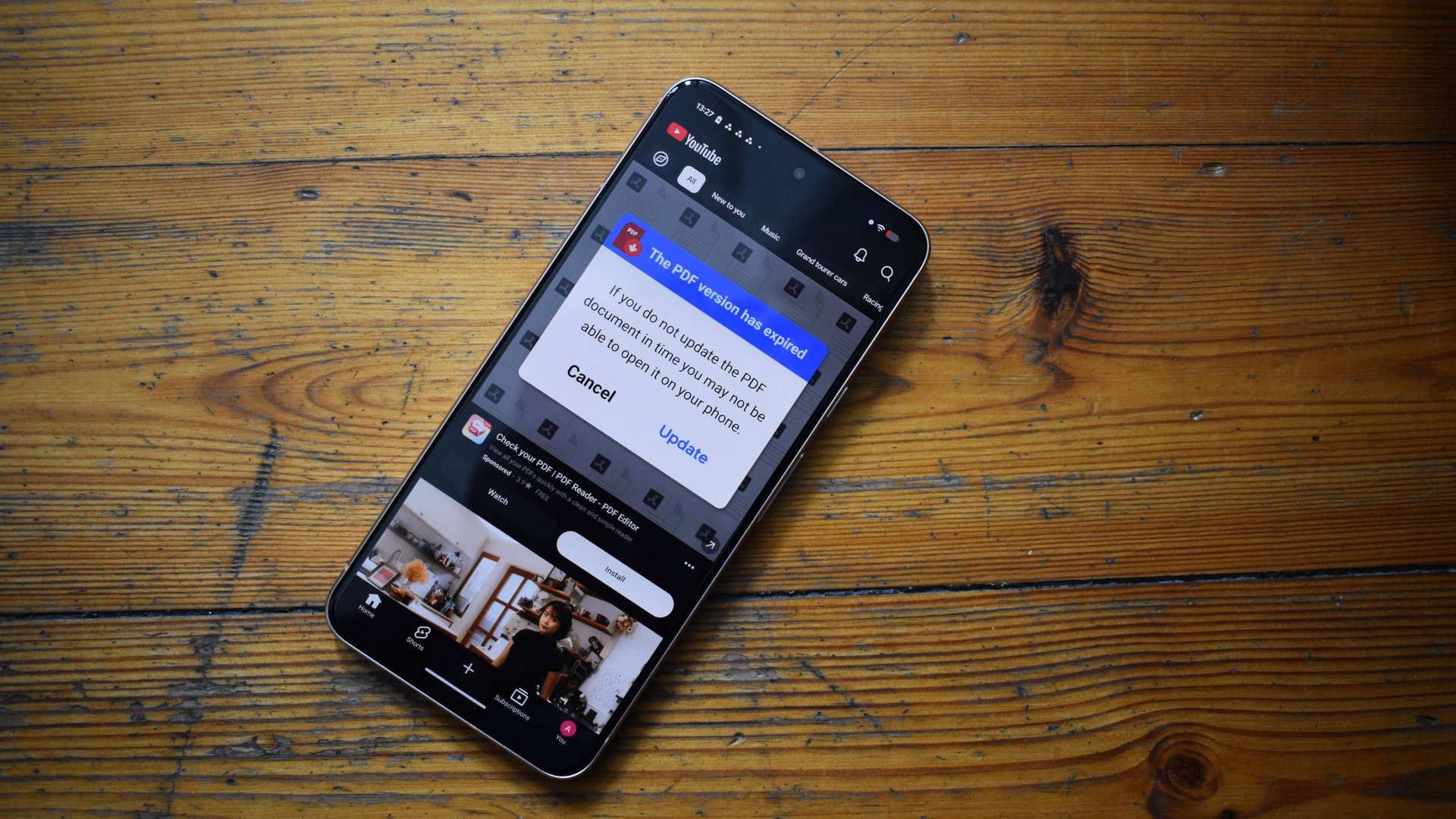
I’ve previously written about my dad, who once encountered a deceptive PDF ad on his phone. He promptly tapped the fake “Update” button and installed numerous bogus PDF apps from the Play Store onto his device. This ad was lurking in a preinstalled office app, but now, it seems that even Google’s own apps are part of the growing problem.
He recently forwarded me the above screenshot of an ad using the old “PDF app is out of date” trick. The twist? The ad was on YouTube — you know, Google’s friendly neighborhood video app. To verify that it wasn’t just his phone, I opened YouTube on my Pixel and lost it when a near-identical ad appeared at the top of the screen (see the feature image at the top of the article).
This was the last straw for me. I want to protect my parents as much as possible from online dangers, which means addressing the ad problem once and for all. Given that they use their mobiles for communication, financial transactions, and storing memories, I want them to have safe, secure platforms free of predatory ads and apps.
I needed to implement a solution that would stay out of their way while affording them the necessary protection. After researching and evaluating the best approaches, I settled on an old favorite content filtering solution that has served me well.
First, let me explain why ads are such an issue on modern Android.
I understand the irony of this piece; I work in the media industry and understand the importance and value of advertisements. They are a chief revenue tool that keeps developers, websites, and the internet at large running smoothly. However, there’s a problem when nefarious actors exploit the need for advertising to push scams.
I’ve seen many stories of users encountering ads that do everything possible to trick unsuspecting users. Numerous Reddit threads have highlighted similar issues, and many of us have encountered explicit ads on platforms that should be family-safe (hello again, YouTube).
This is where I draw a firm line. If companies can’t ensure the ads they push aren’t scammy, predatory, or borderline pornographic, I’d rather block them all. It’s a case of one bad apple spoiling the entire bunch.
Since I no longer live with my parents, the solution necessitated a few considerations.
Your needs will likely shift depending on your household’s structure or if you’re setting up this solution for someone else entirely. But, considering all of the above, I settled on an old favorite ad-blocking solution, NextDNS.
I’ve previously covered NextDNS and explained how I use it on my own devices. Since readers suggested I try it, it has been a game-changer for filtering content on my phone.
Think of NextDNS as a fine-mesh digital net that allows preferred traffic through and catches undesirable content listed by user-selected blocklists. Part of its strength is its customizability and scalability. It works with any device that has a user-customizable DNS field and uses Android’s Private DNS slot to ensure all traffic — Wi-Fi and mobile — is filtered. This means it can work on phones, streaming boxes, PCs, and beyond, making it a one-size-fits-all solution for ads across a wide range of devices.
NextDNS has other perks. Free accounts are allowed 300,000 monthly DNS queries, which should be more than enough for my parents’ combined usage. I never break the 180,000-query barrier on my main phone or my old Android tablet, so there’s plenty of headroom for their phones and additional devices.
Best of all, NextDNS supports individual profiles, allowing me to set up a specific environment for each user and device.
I can manage all this remotely, and all that’s needed is to teach my parents how to enable Android’s Private DNS feature. That’s it.
For a deeper rundown of how to implement NextDNS on your device or network, I’ll point you to my previous coverage. I suggest you use a desktop or laptop to set up NextDNS — I find it easier — but feel free to use a phone.
Finally, once each of their NextDNS profiles was set up, I sent them the NextDNS DNS-over-TLS endpoint details and had them enter this address into the required Android Private DNS field. Note that the address should be an alphanumeric string followed by .dns.nextdns.io, and, more importantly, each profile will have a different string.
That’s it! NextDNS should be up and running, and you can verify this by visiting the Analytics or Logs tab.
Of course, this is just a start. I can now easily monitor their NextDNS profiles and tweak them remotely when required. But, safe to say, ads in third-party apps shouldn’t be a problem for my parents going forward.
It’s also worth noting that NextDNS is just one DNS filtering solution. AdGuard offers a similar service, while many other readers recommend ControlD.
I’ll address the elephant in the room: While NextDNS certainly casts a wide net, it doesn’t eliminate every ad in every app.
DNS filtering is ineffective against services like YouTube that deliver ads and content via similar domains. Naturally, instances like these require alternative solutions.
For YouTube specifically, I would purchase a YouTube Premium Family account for me, my fiancée, and my parents, but my folks no longer live with me at the same address. The one thing that would have solved my dad’s YouTube ad problem once and for all is rendered ineffective by YouTube’s own address policy.
Since Google doesn’t want my money, I’ve resorted to popular alternatives: SmartTube on Android TV, and Libretube and Tubular on Android phones.
There are other problematic apps that will continue to serve deceitful ads, so I recommend keeping a keen eye on any messages you might receive from your loved ones. Common vulnerabilities appear to be PDF apps, so be sure to install a reliable reader on their device.
Additionally, if they encounter a rogue ad, be sure to ask them about the context surrounding it — which app they opened and, if they closed it, how they closed it. Also, ask them for a screenshot of the culprit; it’s pretty important for troubleshooting.