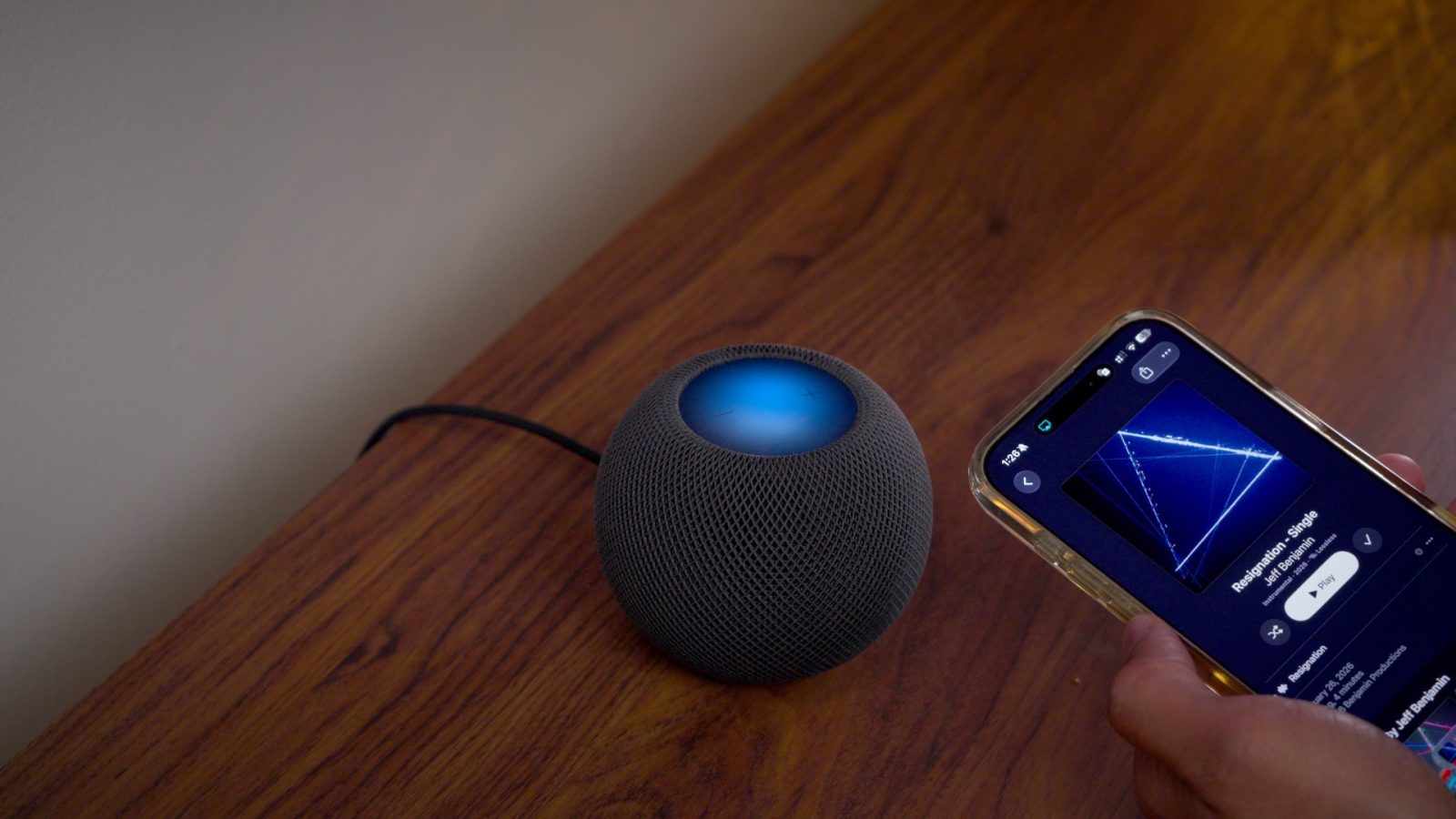
In this episode of iOS Decoded, we take the HomePod’s new Sound Glow feature for a test drive and try out the new Lock Controls feature to prevent accidental activation of its top cap.
We also go hands-on with other changes, like the handy new profiles option for the TV app and Suggested Actions for Messages. Further, we take a look at and listen to some of the assets and sounds from Apple TV’s new surround-sound Home Theater functionality.
Watch our full hands-on video as we dive into these changes and many more, and be sure to subscribe to our YouTube channel for more.
Apple's budget MacBook, the cheapest way to experience macOS on the go.
Starting with iOS 27.2, the HomePod mini and 2nd-generation HomePod will see their LED Matrix displays, which feature 19 and 37 RGB LEDs, respectively, used in a way they haven’t before, thanks to Sound Glow.
Sound Glow transforms the top cap into a color-matched animated visual canvas that matches the album artwork. The canvas glows and pulses in concert with the currently playing song or podcast, responding to changes in bass and treble. For Soundscape ambient sounds like rain, forest, fireplace, etc., bespoke RGB animations are used instead of the Sound Glow audio processing pipeline, since Soundscapes are very different from music.
Subscribe to 9to5Mac on YouTube for more videos
Users who have updated their iOS devices and HomePods to 27.2 will find a new Sound Glow toggle in the Home app under the HomePod settings.
Jeff Benjamin's favorite screen cleaner for Apple products.
I’ve tested Sound Glow fairly extensively, and I’ve been impressed by the feature. It gives music playback a slightly unique experience with each song. I’ve also been impressed by the sheer vibrancy of the display, as Apple is clearly making full use of all of the LEDs embedded under the top cap to generate unique colors based on the currently playing song.
Sound Glow is vibrant, but it’s not extremely bright, and won’t light up your room or anything. But if you place your HomePod in an area where the top cap is easily visible, it’s a really nice addition.
What’s more noteworthy is that Sound Glow isn’t just limited to new hardware like Apple’s recently announced HomePod mini 2. The feature also works with the first-generation HomePod mini and the second-generation full-sized HomePod.
We’ve long known about the LED Matrix display that sits under the touch sensor, but it makes you wonder how long Apple has been sitting on such a feature internally, before deciding to announce it during the HomePod mini section of Apple’s recent HomeView hardware unveiling. My takeaway: Sound Glow may look simple on the surface, but there’s a lot of impressive engineering under the hood that generates these animations!
Jeff Benjamin's favorite wireless earbuds; they just keep getting better.
Another new HomePod-focused feature found in iOS 27.2 is the ability to lock the touch surface to prevent both accidental and intentional interactions. Users will find a new Lock Controls toggle when opening the HomePod settings inside the Home app. Enabling this feature will disable touch interactions for touch, touch and hold, and volume controls.
When touching the top cap with Lock Controls enabled, you’ll see a red animation that shakes back and forth, as if it’s saying “no”.
As I mentioned in the video walkthrough above, my cat sometimes paws at the top cap, causing the HomePod to play music. Enabling Lock Controls would eliminate that issue while still allowing human household members to control Siri by voice or via another iOS device.
In addition, Apple notes that Lock Controls will not interfere with the ability to interact with features such as timers, intercom alarms, check-in, or FaceTime calls via touch. All of those items will remain responsive to a touch of the top cap.
Jeff's favorite screen cleaning cloth that polishes to a shine.
The TV app on iOS 27.2 now supports creating new profiles and switching between them, something we’ve already been using on tvOS. This feature is especially useful if you have small children who enjoy using your phone to watch content via the TV app. Now you can simply switch to your child’s profile, and they can enjoy their content without affecting your profile. In other words, no more episodes of Duck & Goose or Frog and Toad littering your Up Next queue.
The Suggested Actions feature for the Messages app first appeared in the initial iOS 27 betas but was eventually removed before iOS 27 shipped. Now, in iOS 27.2, Apple is ready to ship the feature that will automatically suggest actions based on what’s in your Messages thread. For example, if you paste an address, you might receive an Open in Maps suggestion, or if you type in a date, an Add to Calendar suggestion may appear.
Users can fine-tune the types of suggestions presented in Settings → Messages → Suggested Actions. There, you can toggle on or off add to Calendar, Reminders, Notes, Show in Maps, and Flight and Packages suggestions. Apple also notes that suggestions that you don’t use will stop appearing after a month.
We’ve discovered lots of interesting new assets that give us a behind-the-scenes look at the setup process for the fourth-generation Apple TV’s Home Theater capability, made possible by adding four HomePods in two separate stereo pairs.
We also get a look at some of the animations used during that process, along with an impressive-sounding Celebration animation upon successfully calibrating your Home Theater. You can listen to the corresponding sound just below:
These features are just the tip of the iceberg in terms of all that we uncovered in the iOS 27.2 beta. In our hands-on video, we discuss details about unreleased iPhone and iPad hardware we found. I let you hear and see lots of new sounds and assets from the HomeView setup process, and more. Stay tuned for future episodes of iOS Decoded, where we go deeper than the surface level in terms of new iOS releases!
FTC: We use income earning auto affiliate links. More.
Check out 9to5Mac on YouTube for more Apple news:
Jeff is the head of video content production for 9to5. He initially joined 9to5Mac in 2016, producing videos, walkthroughs, how-tos, written tutorials, and reviews. He takes pride in explaining things simply, clearly, and concisely. Jeff’s videos have been watched hundreds of millions of times by people seeking to learn more about today’s tech. Subscribe to 9to5Mac on YouTube to catch Jeff’s latest videos.