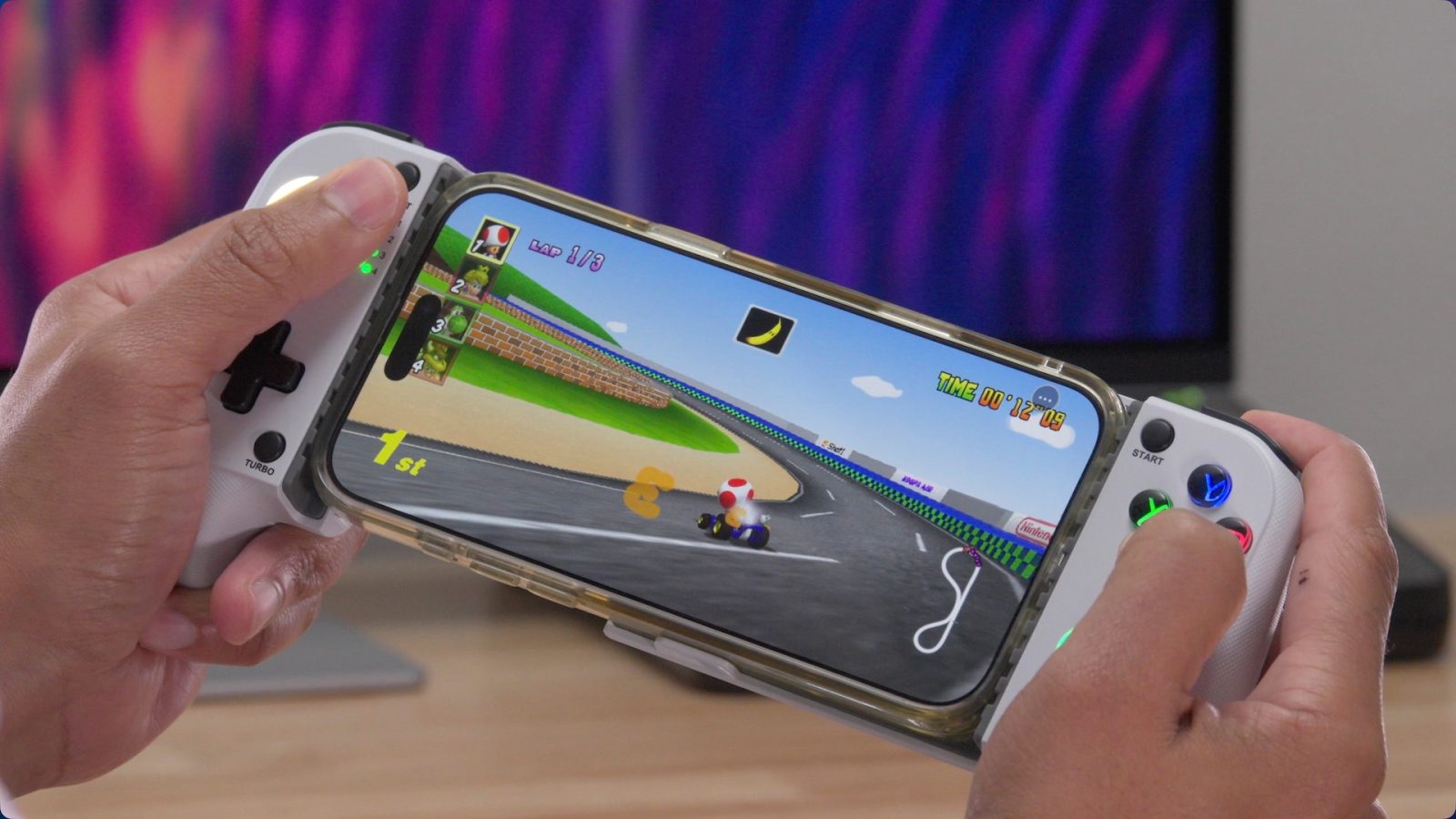
Love Mario Kart 64 and want to play it on iPhone? You may have tried Delta or another N64 emulator in the past to make that happen. And while that works, it’s now possible to run the classic cart racer with native Metal rendering on iPhone.
As we’ll discuss in this video and post, running Mario Kart 64 with native Metal rendering presents several key advantages over running the same game via an emulator. Combined with a Bluetooth controller like the Mocagen MC1, it’s the best way to play Nintendo’s classic cart racer on iPhone.
Jeff Benjamin's favorite wireless earbuds; they just keep getting better.
Libultraship is a library that provides a reimplementation of the original N64 SDK on today’s hardware. SpaghettiKart is a PC source port of the original decompiled Mario Kart 64 cartridge that leverages that library. Developer Chris Sotraidis then repackaged SpaghettiCart as a native iPhone app called SpaghettiPad that features native Metal rendering, Bluetooth controller support, enhanced visual capabilities, and more.
Subscribe to 9to5Mac on YouTube for more videos
While it’s easier to get Mario Kart 64 running on iPhone via an emulator like Delta, running Mario Kart 64 natively on iPhone via SpaghettiPad provides a wide screen aspect ratio, frame rates up to 120 fps, higher resolution textures, better fps performance overall, plus lots of additional settings that aren’t available via emulation. And while SpaghettiPad isn’t devoid of glitches, I’ve noticed way less issues when compared to emulation.
One good example is Luigi Raceway, which features a jumbotron that mirrors your race activity. On the emulated version, the jumbotron is a choppy low frame rate mess, while it runs at a significantly higher locked-in fps on the native version. There a lots of little examples like this that I’ve noticed throughout my hands-on time.
Jeff Benjamin's favorite screen cleaner for Apple products.
Disclaimer: I own the original Mario Kart 64 cartridge. If you own the cartridge, you can dump the required ROM file. We will not be covering how to do that or how to download any ROMs.
Although iLoader can be used to sideload an .ipa directly to your iPhone, the primary reason to use iLoader for this tutorial is to use it as a way to facilitate the installation of SideStore.
Step 2: Mount the iloader.dmg and drag the iLoader app to your Applications folder.
Apple's budget MacBook, the cheapest way to experience macOS on the go.
Step 3: Launch iLoader and connect your iPhone to your Mac via USB. If prompted to trust the computer, do so and enter your device passcode.
Step 4: Click refresh under Device s, and you should see your iPhone listed.
Step 5: Enter your Apple ID Email and Password, and click Login. This Apple ID does not have to be associated with the account on your iPhone, and you do not have to be registered as an Apple Developer to do this. If you have two-factor authentication enabled, you’ll need to provide the authentication code that you receive from Apple.
SideStore is an AltStore fork that lets you add repos, install .ipas, and signs and resigns those applications in the background to keep Apple’s 7-day development period from expiring. SideStore works in concert with LocalDevVPN to allow for truly wireless and Mac-free side-loaded app management.
Jeff's favorite screen cleaning cloth that polishes to a shine.
Every app that you install with SideStore needs to register an App ID with Apple, and Apple limits non-developer logins to just 10 App IDs per week. After one week, these App IDs roll off.
Apps installed via Side Store with non-developer logins are also limited to just three apps at once, and SideStore itself counts as one of those apps.
Each app signing will expire after seven days, and you can refresh manually at any time. However, SideStore will automatically refresh apps in the background when connected to LocalDevVPN, and will re-register App IDs for installed apps automatically, no computer required.
Step 6: Open iLoader on your connected Mac, and click SideStore (Stable) under the Installers sections to install SideStore on your iPhone.
Step 7: On iPhone go to Settings → General → VPN & Device Management and tap the panel under Developer App that says “Not Trusted.” On the next page, tap Trust → Allow.
Step 8: Open the SideStore on your iPhone, and you can select Don’t Allow on the network permission pop-up if desired, but you should choose to allow the notifications permission.
LocalDevVPN is a free App Store app that serve as a loopback VPN that creates a virtual interface pointing back to your iPhone. It tricks iOS into thinking a paired Mac is attached to your iPhone, which provides the debug toolset that lets you install and refresh side loaded apps.
Step 9: On your iPhone go to the App Store and install LocalDevVPN.
Step 10: Open LocalDevVPN, skip the welcome screen and click Connect → Allow. Enter your iPhone’s passcode to add a VPN configuration. The current status for LocalDevVPN should show Connected.
Step 11: Download the SpaghettiPad.ipa from GitHub on your iPhone and save it to your iPhone’s download folder.
Step 12: Open SideStore, tap the My Apps tab at the bottom.